
Video tutorial transcript:
Introduction
Hello, and welcome to this short video introducing images campaigns.
This video demonstration will familiarise you with images campaigns and how they are set up in Fredhopper’s Merchandising Studio.
Please be aware that test data is used throughout this demo, and you should refer to your own data sets when applying this functionality.
What are images campaigns?
Image campaigns can provide a means to inspire shoppers to purchase your products. This could include an image for sales items located on your women's category, an image with a link to seasonal products, or a simple visually appealing way to navigate shoppers to a category on your site.
So how do we set up images campaigns in the Merchandising studio? Let’s use a scenario to implement one.
We want to show an image of a mens sale banner on the mens category page and the home page, that links to the mens sale page.
How to demo
Using your credentials open your Merchandising Studio. This will open on the campaigns tab by default:
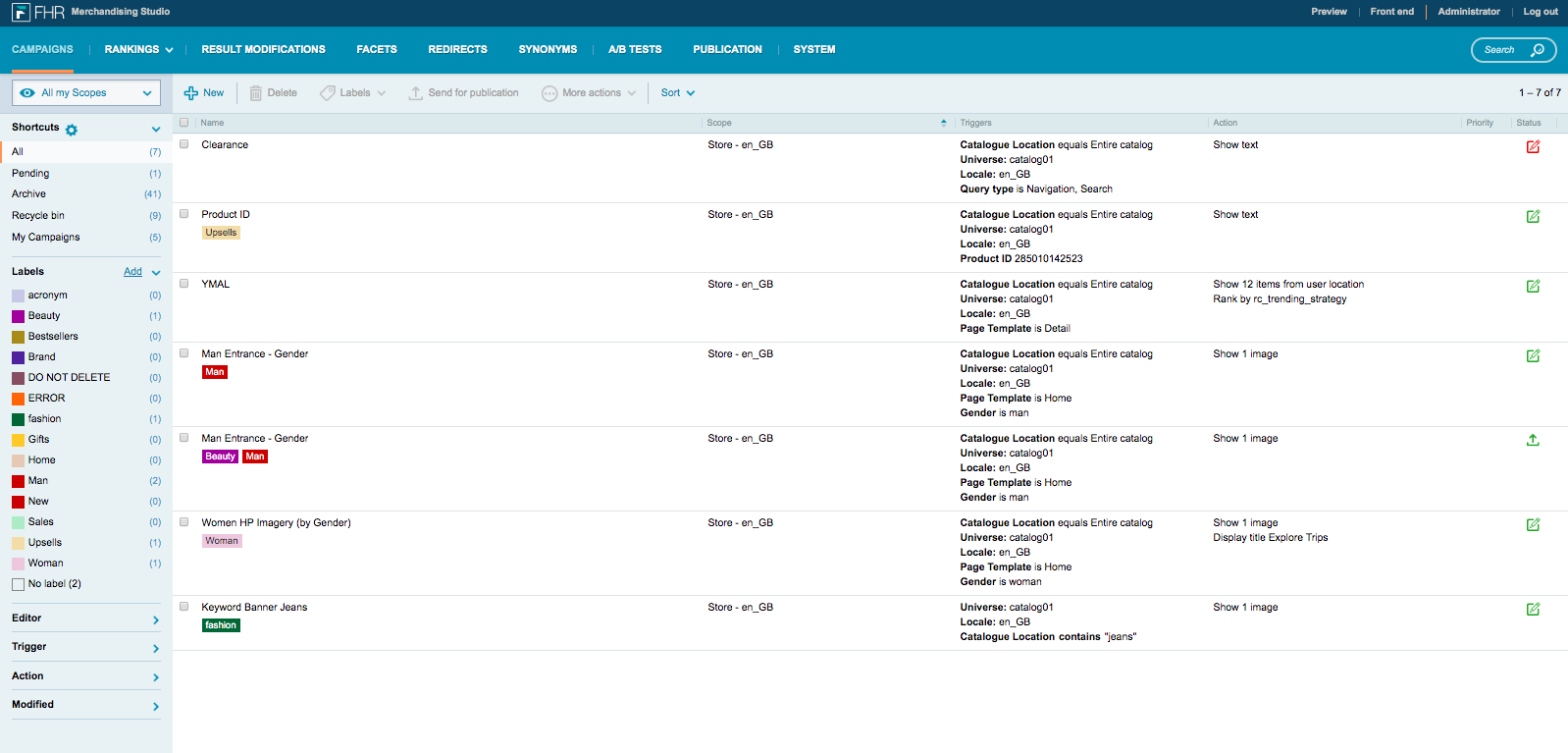
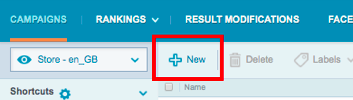
Next … Click on new:
Let’s call this Mens sale:
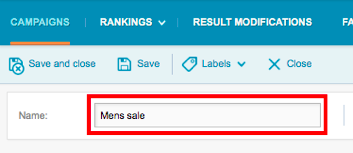
Don’t forget to add a label so it is easy to find in the list of campaigns you create.
Click SELECT SCOPE and choose the scope:
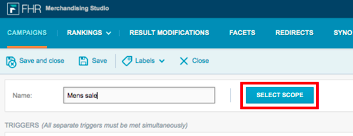
For this scenario we want the campaign to trigger on the homepage, and the mens category homepage, so we need to set up a location trigger.
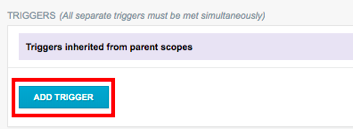
Click on ADD TRIGGER:
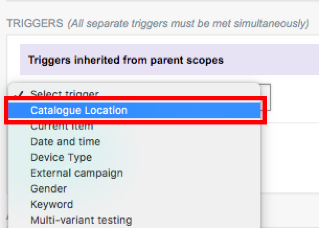
Choose catalogue location (your Merchandising Studio may show this as 'user location'), then click ADD LOCATION:
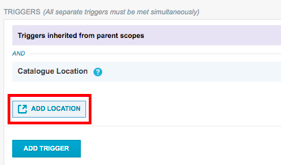
This will automatically open your preview site and the homepage. The first location we want the image campaign to show is on the home page, so select this location:
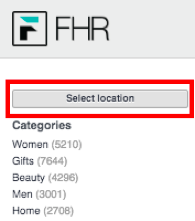
Now add the trigger for the mens homepage location,
Add the trigger as before, this time navigate to the mens homepage location and add this location.
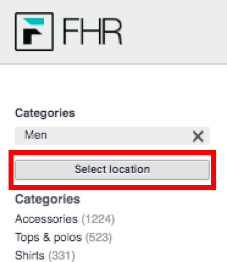
Now let’s add the image details, scroll down to the action area and change the 'Show' dropdown to Images:
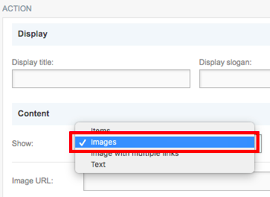
Paste the URL image to this field:
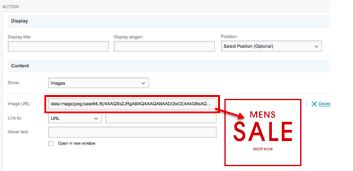
And press enter on your keyboard, and you will see a preview of the image appear.
It is optional, but you can add a link to a URL, or a location in your site. Another option is to add hover over text and check the box to open the URL or location link in another window. For now, we will leave these blank.
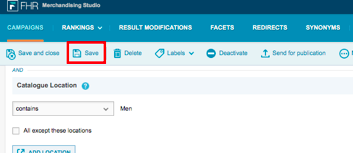
Check your campaign configuration is accurate and click Save:
It’s best practice to check the campaign is firing as expected, to do this go to your Preview site:

So immediately we can see the image campaign is visible on the homepage, but let’s check it doesn’t appear on any other category pages except Men's, so I’ll navigate to Women’s …
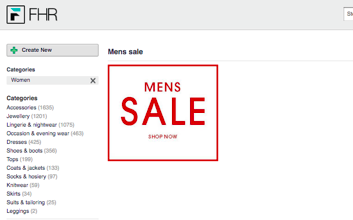
So we can see it appears on women's, which it shouldn’t, let’s just check it appears on Men's...
Great, it appears here, let's go back to our campaign and make some changes so it only appears on the homepage and the men's homepage.
Change this home trigger dropdown from 'starts with' … to 'equals':
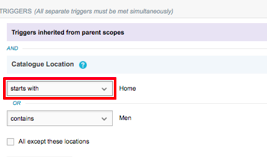
Let’s save this configuration again and check our settings in Preview:
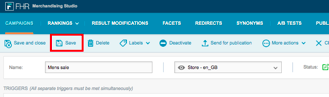
Again we can see the image on the homepage, let's check Men’s and Women's to see where it appears ….
Great, it appears on the homepage ….
And it appears on the men's homepage.
And it doesn’t appear on the women's homepage - excellent.
Go back to the Merchandising Studio and Send the Image campaign for publication:
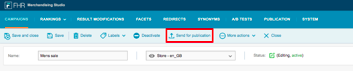
Once the campaign is published it will trigger according to your cache process.
Best practice
- Campaigns can be set up in advance, to do this use the date and time trigger.
- De-active or archive campaigns that are not currently in use, which you can reactivate and publish at a later date (annual/seasonal events).
- Add appropriate labels so you can easily find campaigns.
Thank you for watching this demo video, we hope you have enjoyed this quick introduction to images campaigns.
Please do not hesitate to contact us should you have any questions, use this link to raise a ticket.
Your feedback is important to us, please take a moment to let us know if you found this article helpful by clicking "Yes" or "No" in the "Was this article helpful?" section below or by adding a comment.
Comments
0 comments
Please sign in to leave a comment.