
Welcome to How to create an upsell rules
This article will provide you with a simple step-by-step guide to implement up-sell use cases based on Price information.
About this feature
With XO, you can easily apply smart merchandising to seamlessly blend the benefits of AI with your business requirements and specificities. Define, create and manage merchandising rules in your widgets, in line with your commercial goals.Here, we'll focus on applying up-sell strategies on your widgets. Using XO platform, you can easily apply up-sell strategies on your widgets.
Prerequisites
Before we start, make sure you have access to the XO control panel. If you do not have access you can request access by clicking here or choosing “I/my colleague require access to an Attraqt service” from the use case drop down on the “Submit a request” page in the Support Centre. For security reasons we require access for 3rd parties to be requested by a member of the organisation to whose control panel access is being requested for. This is to ensure the organisation has granted access to the control panel to access the control panel. You will need to have TAGs available on your Tag List area, if that's not the case please see above how to get started with this.
Key information about this topic/feature
We will see 3 use cases usually applied by retailers with different levels of complexity, ranking from scenario 1 to scenario 3. The scenario 2 will show you how to use a product variable and the scenario 3 will show you how to use a context variable.
| Purpose of the scenario 1 | We would like to increase the overall basket value by encouraging the customer to add to his basket additional low-price products. Placements: basket pages (basket page, basket pop-in). |
| Purpose of the scenario 2 | We are looking to promote products with a higher price than the viewed product in order to increase the average basket (while staying within a coherent price segmentation with the product viewed). Placement: product page. |
| Purpose of the scenario 3 |
We would like to increase the overall basket value by encouraging the customers to add to their basket additional products allowing them to reach the min. required value to get free shipping costs. Placements: basket pages (basket page, basket pop-in). |
| Name in XO console |
Variable Rules Widget |
Scenario 1 : manage basic up-sell on the basket
My brand is a retail site. On the Basket page, I want to promote low-price products that the customer would be tempted to add in the basket. So for this case, I will apply a selection on products with a price range including a maximum price.
Apply a price range on a merchandising rule
We log in to the XO platform on our account
We click on “Merchandising” from the left-hand side menu and we select sub section "widgets". Then we select the widget used on our basket/basket pop-in page to edit it.
We select the distribution on which we want to apply the rule.
On the "merchandising" tab and "filters" tab, we complete the field “Max Price” with the maximum amount we want to apply. Optionally, we can add a “Min Price” to control a min range of price. Note that the completed & applied field will be marked with blue mark.
Once these fields completed, we can save the widget.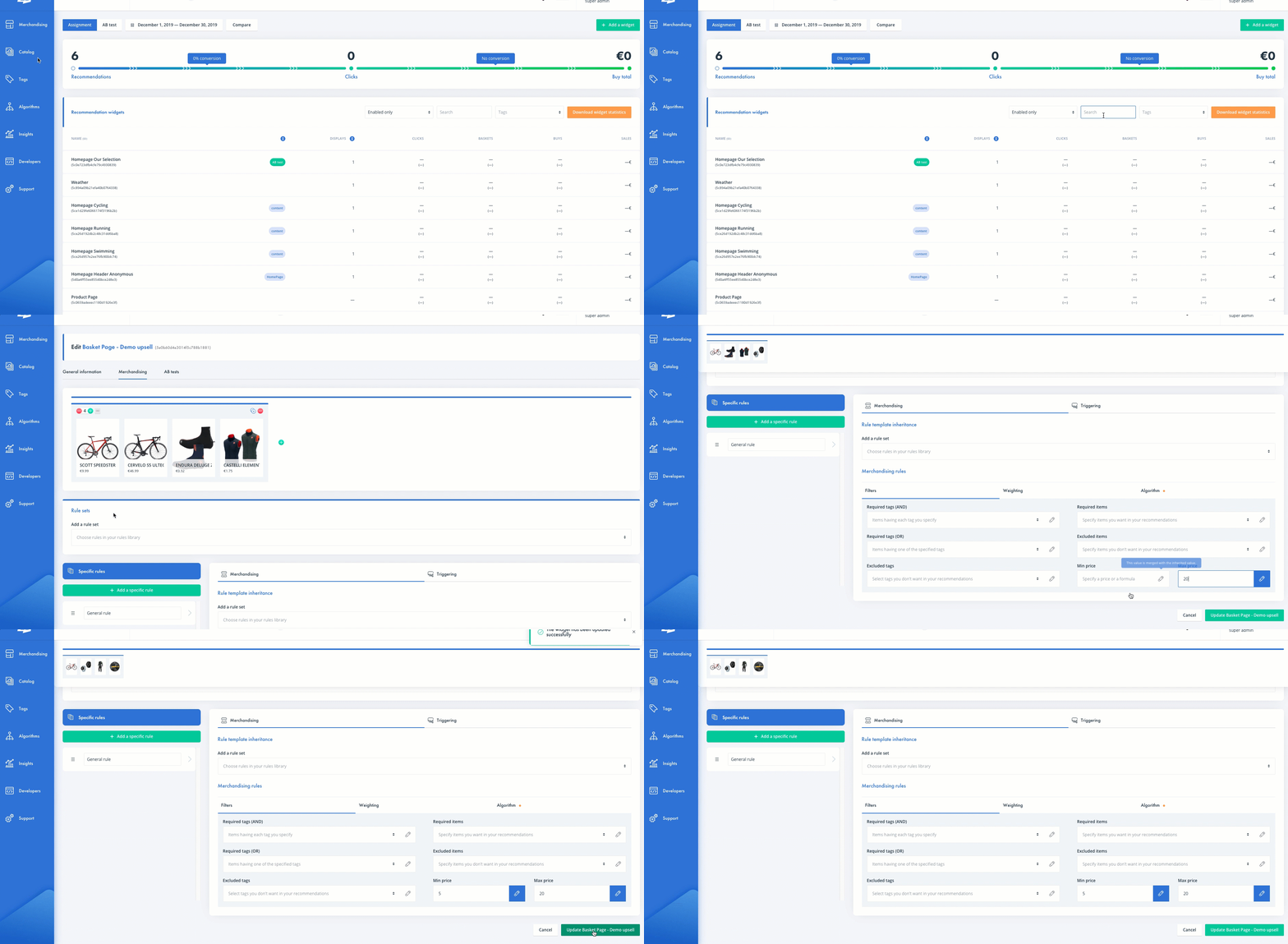
Scenario 2 : apply an up sell rule on the view product
Our brand is a retail site. On the product page, weI want to promote products having a little higher price than the view product, in order to increase our product average basket.
Step 1: check the price attribute
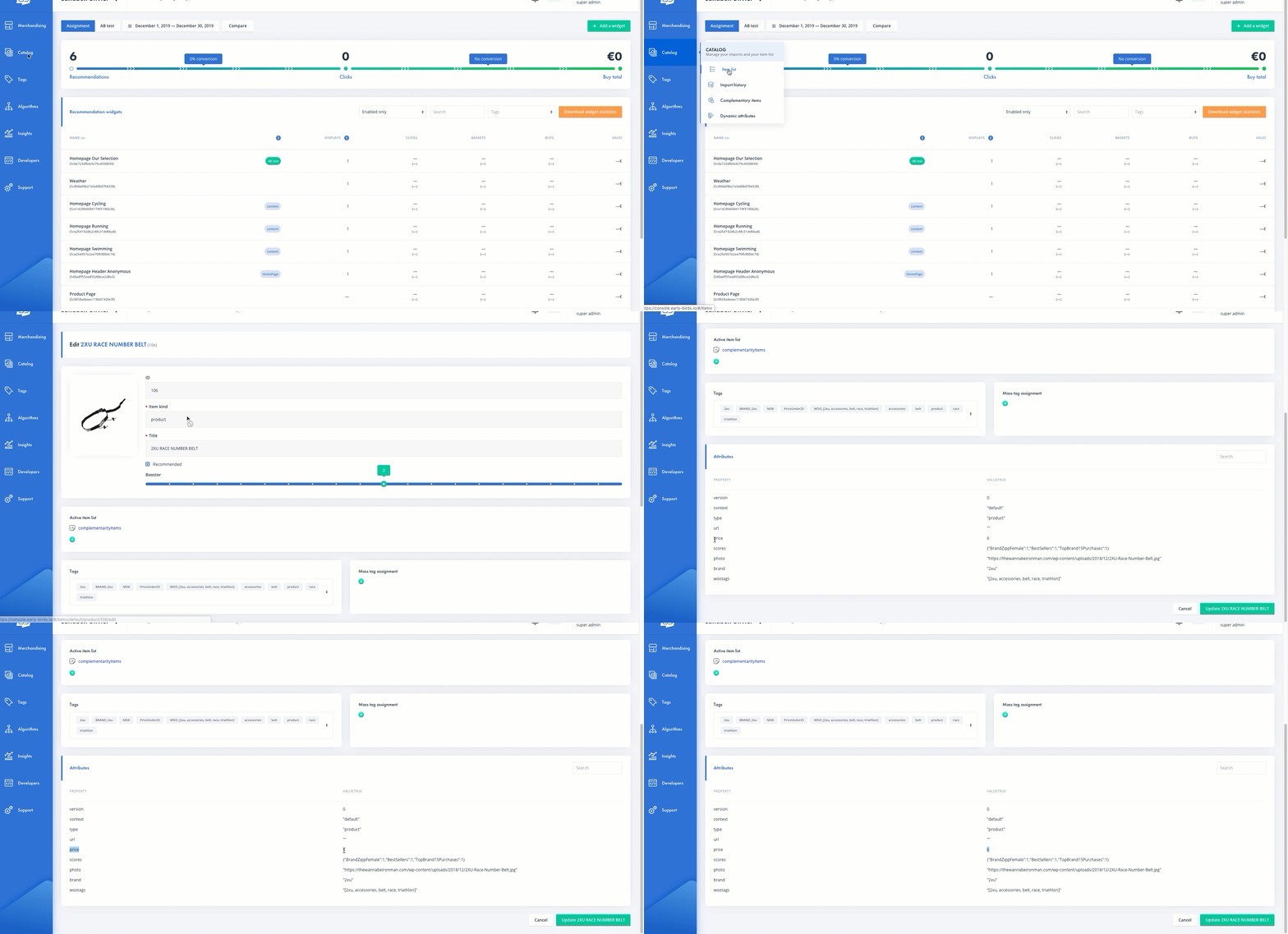
Log in to the XO platform and click on “Catalog” from the left-hand side menu and the sub tab “Item List ”. We select an Item and double click on it to view its details. We check the name of the price attribute, here named “price”.
Step 2: create the Price variable based on the product
We will create a variable based on the attribute “price”.
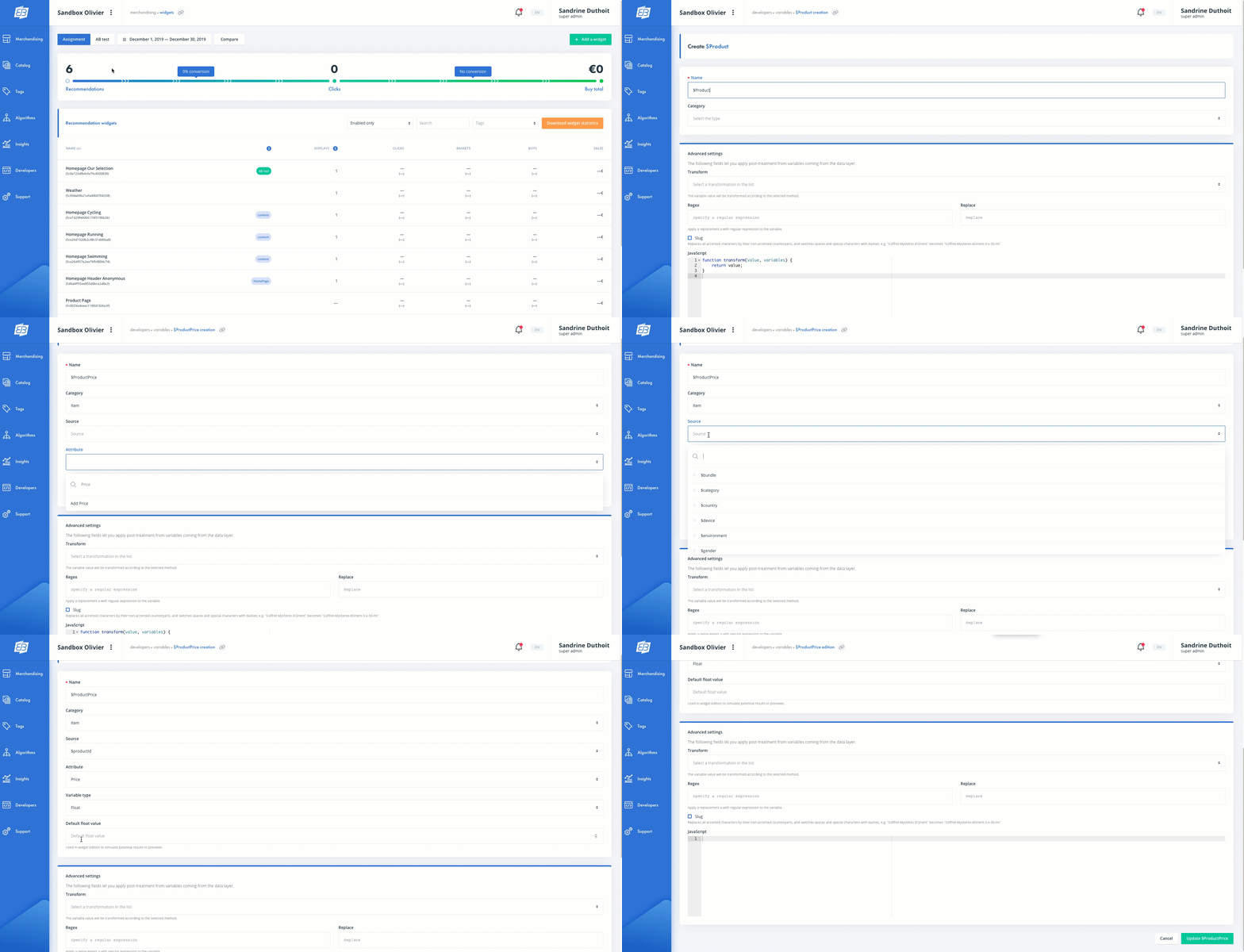
We Click on “Developers” from the left-hand side menu and the sub tab “Variables” . Then we click on the button “Add a variable”
We Complete the following field to create our Product Price variable (we call it Product Price as this variable relies on the catalogue product attribute)
- Name: We will name it “$ProductPrice” in this test. The automatic character $ identifies all the variables in the console.
- Category: we will select “Items”, as our variable will be based on an information given by the catalogue of Items.
- Attribute: we will select “Price” as defined in the catalogue attribute.
- Variable Type: we will select “Float” as Prices are float numbers by default.
- Source: as our variable will be based on the Price corresponding to the $ProductId of the product viewed by the customer, we will select this variable “$ProductId”. Note that the variable “$ProductId” is automatically created during the onboarding process.
- Default float value: this optional field doesn’t need to be completed in our use case.
Once these fields completed, we can save our variable.
Step 3: Use the ProductPrice variable in a widget
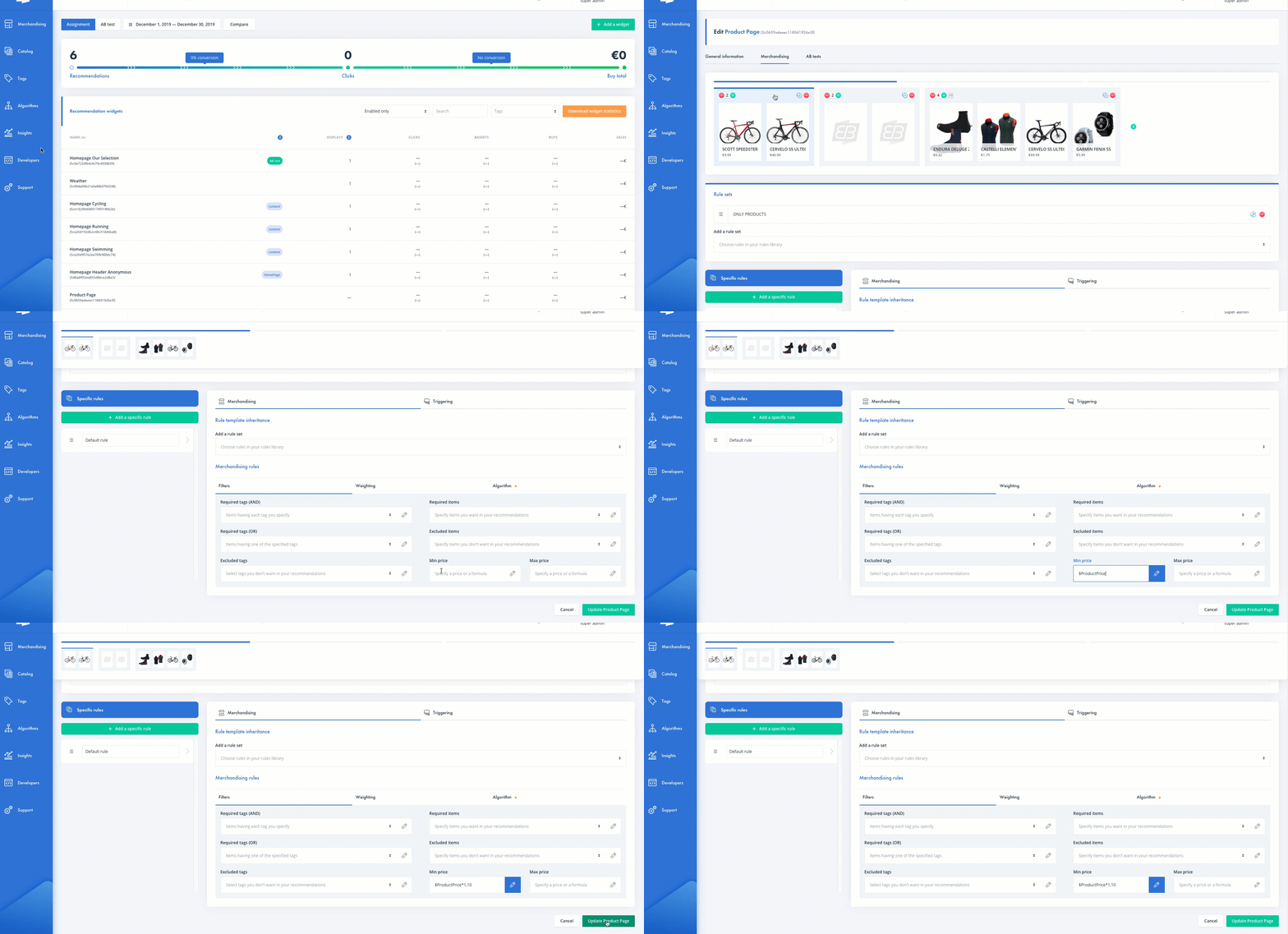
We Click on “Merchandising” from the left-hand side menu and select the sub-tab “Widgets” to select the specific widget we want to use to modify it.
We Select the distribution on which we want to apply My variable.
On the “Merchandising” section and “filters” section, we complete the field “Min price” with the ProductPrice variable combined with the multiplying factor we wish to apply on the Price. (here in the example, we wish to select the products with a Min price 10% higher than the view product. So, we will add the multiplying factor “1.10” to the $ProductPrice to get that formula “$ProductPrice*1.10”). Be careful to use the exact variable name (case sensitive).
Optional: we can also limit the up-sell rule on a Max Price if we wish to limit this up-sell range. In that case, I will adopt the similar configuration in the “Max Price” field (ex: “ $ProductPrice*1.50” to limit the price to 150% higher than the view product price).
Note that the completed & applied field will be marked with blue mark.
Update the widget to save our change.
Scenario 3 : apply a triggered up-sell rule on basket
Our brand is a retail site. We want to increase our overall basket value by encouraging the customer to add to his basket additional products with a price allowing them to reach the min. required value to have free shipping costs. For the purpose of this case, we will imagine free shipping cost offered for a min Cart amount of 100€.
Placements: basket pages (basket page, basket pop-in).
Step 1: check the Cart amount variable
We check that we can track on site the cart amount communicated in the basket page. This contextual variable is necessary for this use case. If not, please contact before your CSM or your support Zendesk to explain you the necessary process.
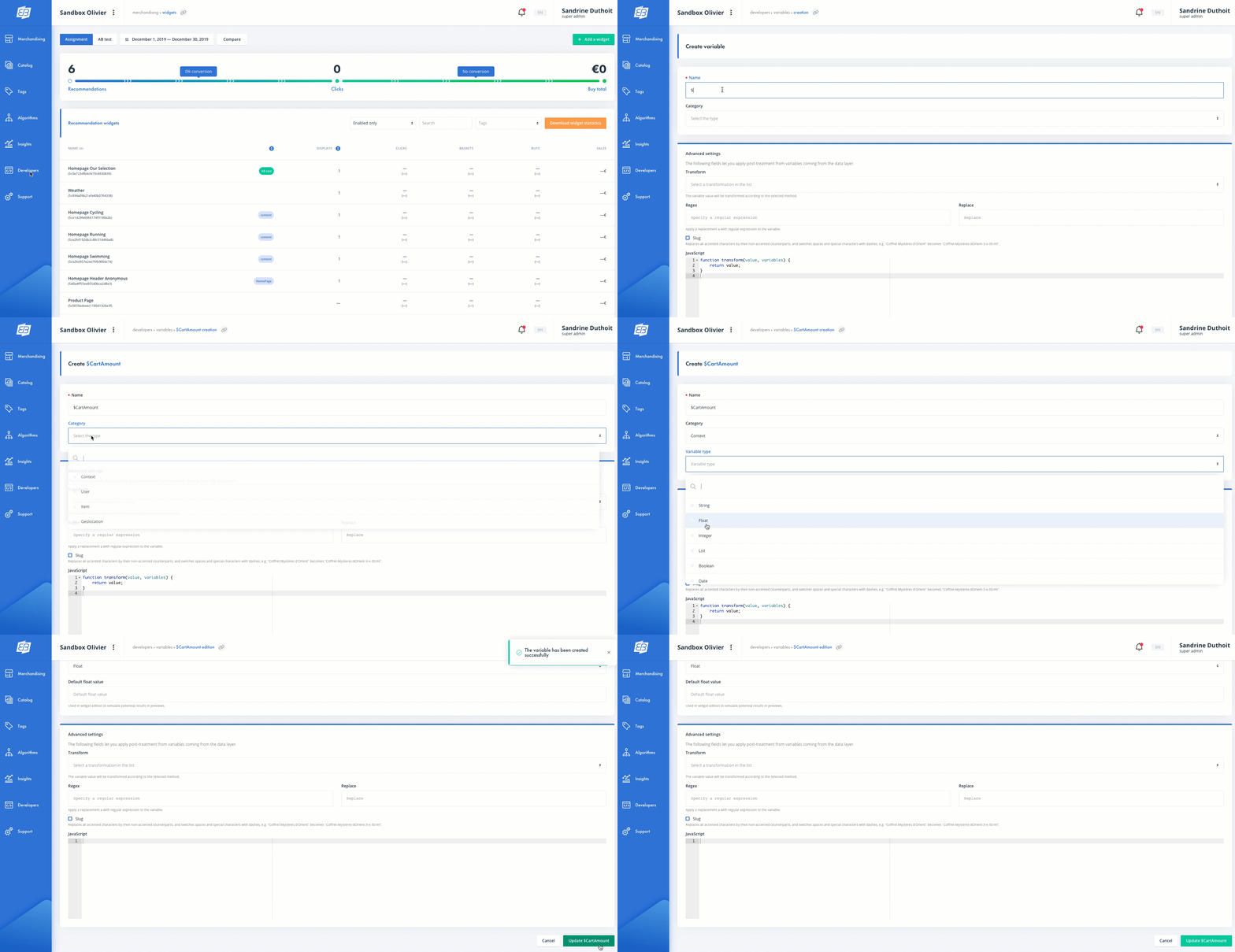
Step 2: create the variable based on the Cart amount
We will create a variable based on the contextual Cart amount.
WeClick on “Variables” from the left-hand side menu and “Add a variable”.
We Complete the following field to create our variable:
- Name: we will name it “$CartAmount” in this test. The automatic character $ identifies all the variables in the console.
- Category: we will select “Context”, as our variable will be based on a contextual information given by the navigation data reported to XO.
- Variable Type: we will select “Float” as Prices are float numbers by default.
- Default float value: this optional field doesn’t need to be completed in our use case.
Once these fields completed, we can save our variable.
Step 3: create a rule using the CartAmount variable
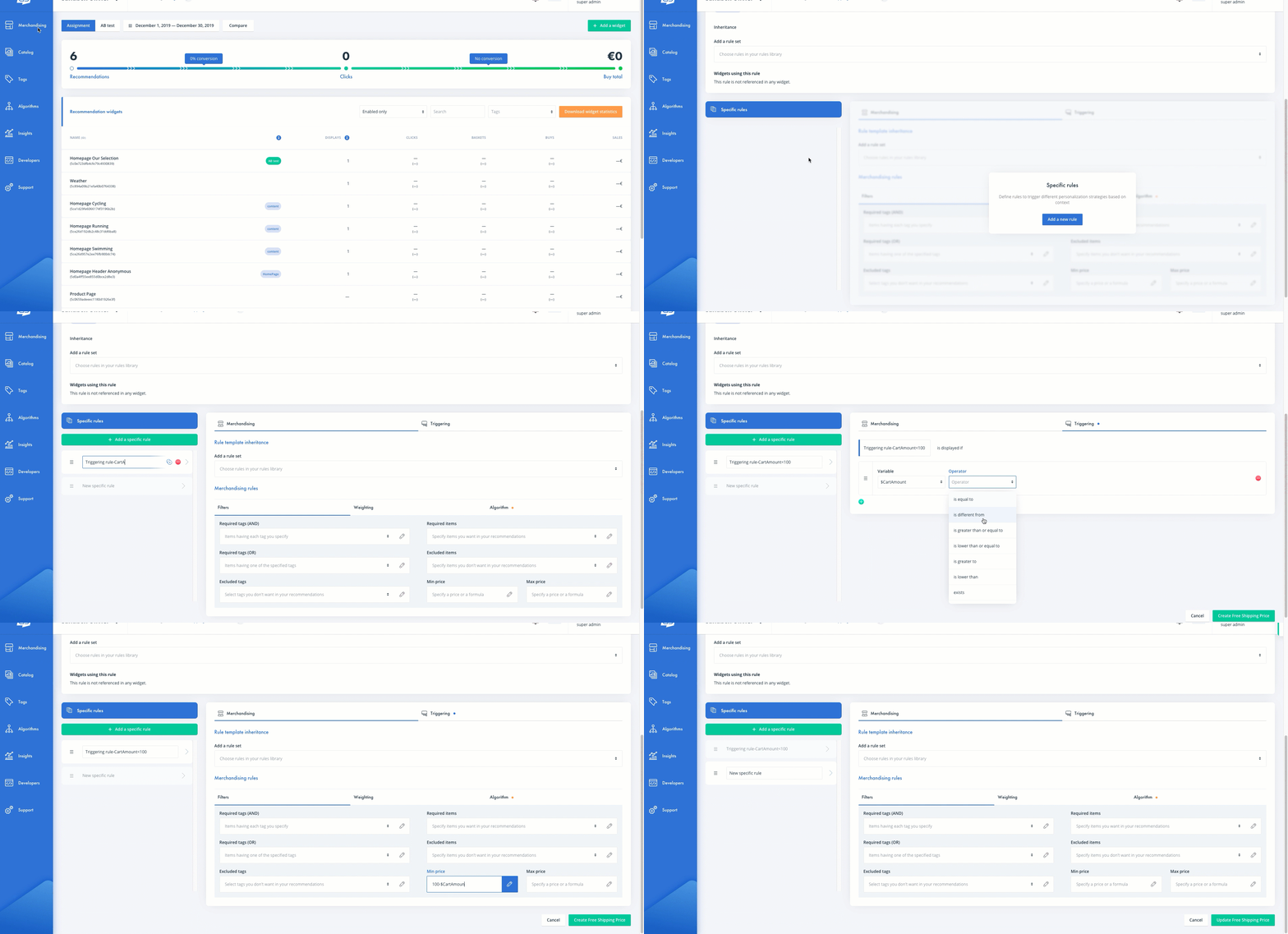
This rule will include a triggering condition that will activate the application of the filter in this following situation: if our cart amount is lower than 100€, then we will select products whose price can help me to reach 100€ (the free shipping Minimum amount for this example).
We Click on “Merchandising” from the left-hand side menu and select the “rules” in sub menu.
We name our rule “Free Shipping Price”, label it “filter”, and we add a new rule in “Merchandising tab”.
In left tab “specific rules”, we add a “specific rule” to apply a “Triggering” condition. We add this following “condition” : we select “$CartAmount” variable whose operator “is lower than” the value “100€”.
In “Merchandising rule”, we complete in “Min Price” the following calculation “100-$CartAmount”.
As our rule contains a triggering, we check that a default rule without any triggering exists behind it.
Step 4: Apply the rule in the basket widget
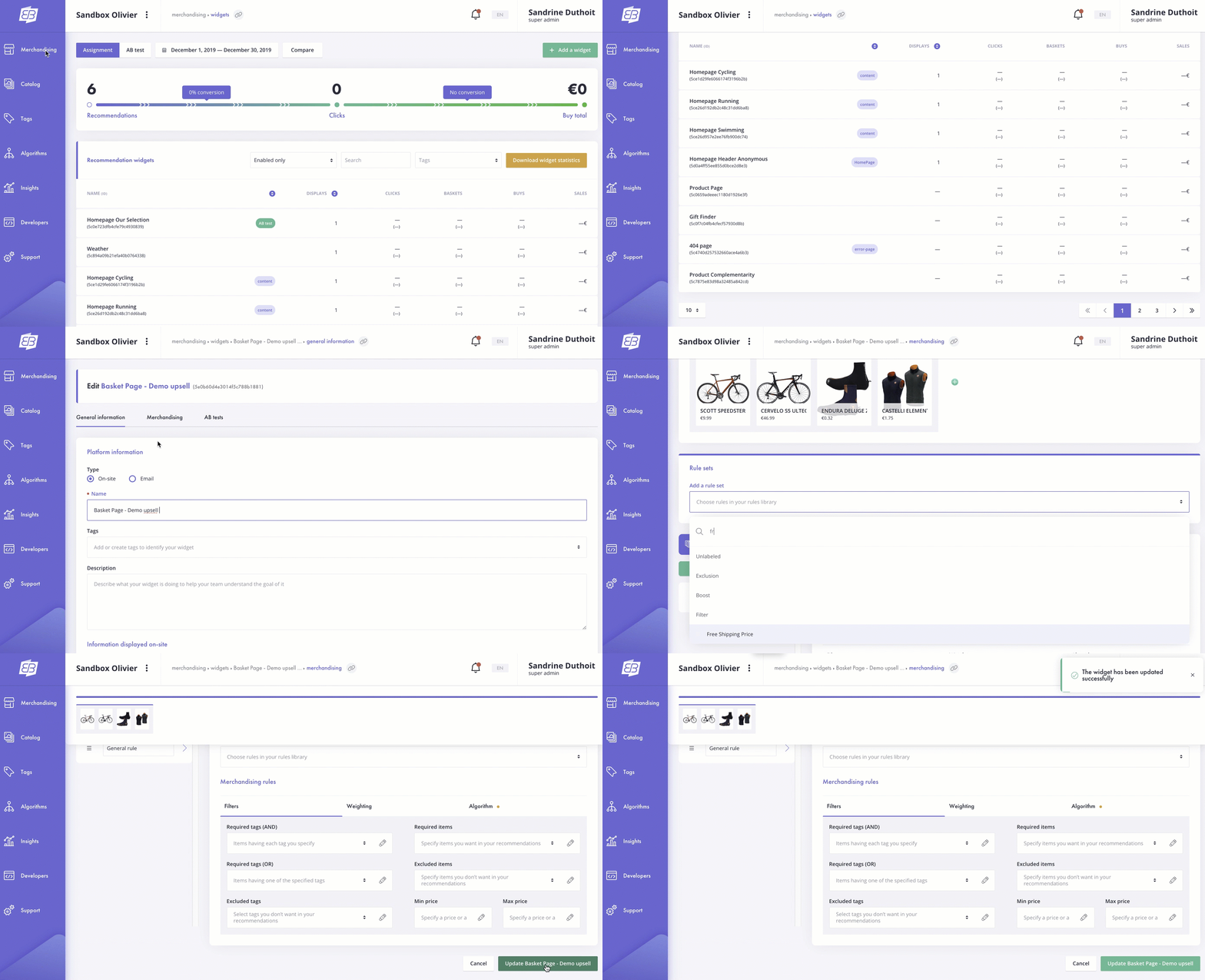
We Click on “Merchandising” from the left-hand side menu and select the sub-tab “Widgets” to select the specific widget we want to use to modify it.
We select the distribution concerned and we select our “Free Shipping Price” rule and I save the widget.
Best practice
In case we wish to adopt the same up-sell use cases in several distributions or widgets, we can create a master rule that we will apply to all the distributions/widgets.
Conclusion
Congratulations! You now know how to create upsell rules in XO.
Let us know in the comment section if there are other test scenarios you would like us to create how-to guides for.
Enjoy your XO experience 😊
Should you encounter any difficulty please don’t hesitate to contact us by clicking here and choosing “I have a question” from the list of use cases.
Comments
0 comments
Please sign in to leave a comment.