
Video tutorial transcript:
Introduction
Hello, and welcome to this short video introducing redirects.
This video demonstration will familiarise you with redirects and how they are set up in Fredhopper’s Merchandising Studio.
Please be aware that test data is used throughout this demo, and you should refer to your own data sets when applying this functionality.
What are redirects?
Redirects provide the ability to divert shoppers to a fixed location based on search terms or user location, providing the necessary information or products.
These are particularly useful, where a shopper searches for ‘help’, and you can redirect them to your customer services help page, or they search for ‘men's sale’, you can navigate them to your Men’s campaign page. The use cases are endless and can be used as you see fit.
So how do we set up a redirect in the Merchandising studio? Let’s use a scenario to implement one.
The scenario is to redirect shoppers to a dedicated page when they type shipping as a search term.
How to demo
Using your credentials open your Merchandising Studio. This will open on the campaigns tab by default.
- From the navigation bar, click on the Redirects tab and click New.
- Give the redirect a name that is recognisable to the strategy you want to achieve.
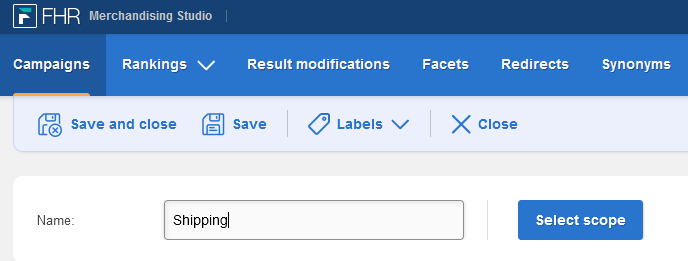
- Click Select Scope and choose the scope.
- Click on the Select trigger dropdown. For more information on Triggers see 'Getting Started with redirects’:
- This scenario is triggered when a shopper searches Shipping, so we will add a user location.
- Choose catalogue location and Add location.
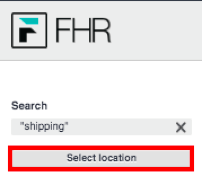
- You’ll see that I have left the Merchandising Studio and now I am in the Preview. Type in Shipping to the search field and press enter on your keyboard.
- Then click Select location. This configuration means that the redirect will trigger when the shopper searches shipping.
- Now we need to configure the action to what happens when the trigger condition is met. Simply add the URL to the field.
- Check the configuration and click Save.
- The best practice is to check the redirect works as you’d expect, so click on Preview, type shipping into the search field and make sure you are redirected as expected. Once you are happy with the settings in your redirect, go back to the Merchandising Studio and Send the redirect for Publication.
Once the redirect is published it will trigger according to your cache process.
Best practices
- Always check your configuration in Preview.
- Regularly review and manage your redirects to ensure they are still fit for purpose.
- Ensure you have set up a redirect for common keywords (search terms) e.g. ‘Delivery’, ‘Shipping’ or ‘Contact/Help’.
Thank you for watching this demo video, we hope you have enjoyed this quick introduction to redirects.
Please do not hesitate to contact us should you have any questions, use this link to raise a ticket.
Comments
0 comments
Please sign in to leave a comment.