
Video tutorial transcript
Introduction
Hello, and welcome to this short video introducing result modifications.
This video demonstration will familiarise you with result modifications and how they are set up in Fredhopper’s Merchandising Studio.
Please be aware that test data is used throughout this demo, and you should refer to your own data sets when applying this functionality.
Result modifications allow you to manually block, promote or demote products, individually or by creating groups on a product lister page. In one result modification, you can block and move products or groups of products. More than one modification can be applied to the same location.
Result modifications are layered over a ranking rule; they don’t amend the underlying rule.
It's always best to define a ranking rule first and then merchandise it additionally with a result modification.
This fine-tuning can boost or bury certain products on your product listing page.
Why are result modifications important to you?
Modifying results across your site using the Merchandising Studio gives you the freedom to override rules, giving you full control and allowing you to make your site completely bespoke to suit your shoppers and eCommerce Strategy.
When to use result modifications?
Result modifications can be used to:
- Block some product in case they pop-up on an undesirable location. For example, 'Men’s' products appearing 'Boys' catalogue or 'Schoolwear' products appearing in 'Men’s wear' location.
- Move some products to appear at the top or the bottom of the product listing page. For example, show running shoes first if a customer searches for a well-known sports brand, rather than the brand's socks or bags.
- Group specific product/s (based on specific product information/attributes) into one or more rows. For example, group the first row to show a certain colour of products, ranked by price.
So how do we set up a result modification in the Merchandising studio? Let’s use a scenario to implement one.
The result modification scenario is to promote summer type shoes in spring and summer and winter type shoes in autumn and winter across the women’s catalogue.
This requires setting up two result modifications, both with a date and time trigger, one for the winter period and one for the summer period. All boot sub-categories should show first for the winter modification and flip flop and sandals shoe options first for summer.
How to demo
Using your credentials open your Merchandising Studio. This will open on the campaigns tab by default:
From the navigation bar, click on the Result Modifications tab.
Next, click on New.
Give the rule a name that is recognisable to the strategy you want to achieve:
Click Select Scope and choose the scope.
Click on the Select trigger dropdown. For more information on Triggers see the article 'Getting Started with result modifications':
In this scenario select Date and time as we want this rule to apply during the winter period:
Change the start date to 22nd September and the end date to 18th March:
Next, add the Action, which is where you create the shoe groups. So as these shoes are winter-related, and we want the boots to show first.
To do this click on Configure Modifications.
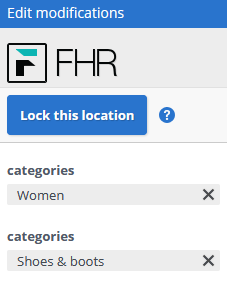
Navigate to Women’s and Shoes and Boots, and then Lock this Location.
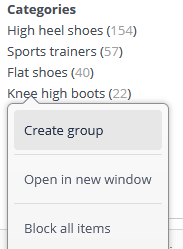
We want to group knee-high boots, so click on this category and choose 'Create group' from the options that appear:
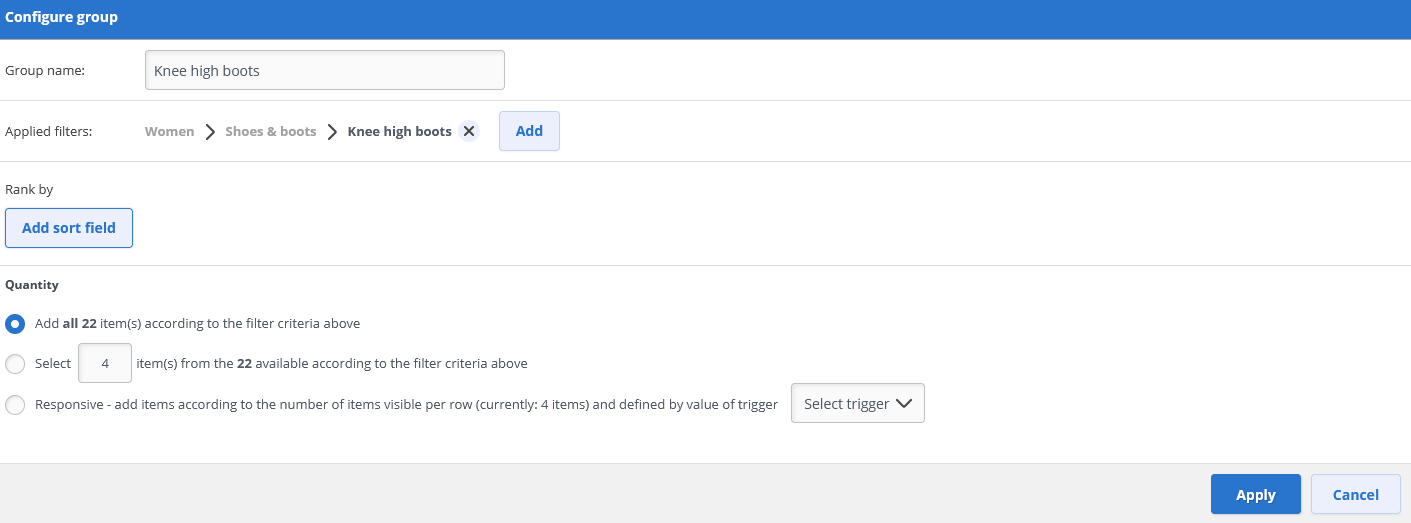
To add a rank by, click Add Sort Field (1), here you can rank by any of the attributes you have available, for this scenario we will rank by Margin high to low.
Next, choose the quantity – how many products you want to show in this group. In this scenario we want to group all the knee-high boots, as all the boots are relevant, so click Add all. Then Click Apply:
You’ll notice here that we have configured one modification so far.
The next boots category is Calf boots, so we need to repeat the process for Calf boots. Repeat this for Ankle boots.
Lastly to ensure that Flip flops and sandals are the last to appear in the product lister page. Create another group for Flip flops and sandals.
You should now have 4 modifications created:
Scroll through the pages until you find the Flip flops & sandals group.
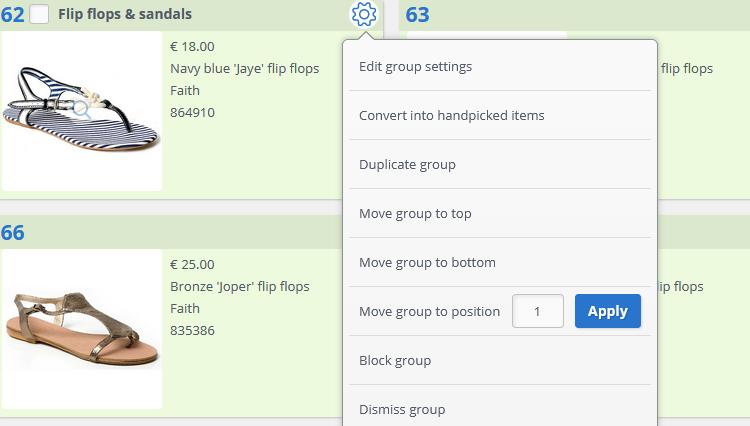
This settings cog allows you to make further edits.
There are a number of additional configuration options that you can implement here, like… move the group to the top, bottom, or even block the group from the product listing page.
For this scenario, we just want to make sure Flip flops & sandals appear at the bottom of the list so click move group to the bottom:
You can modify the page further if required, but for now, we will finish this modification, so click Finish:
Now Save the result modification.
Check that the result modification fires as expected in Preview.
Navigate to Women’s, then Shoes and boots.
As you can see boots do not appear first at the moment, so you will need to apply the date and time trigger to preview:
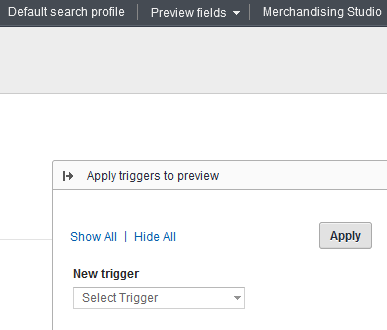
Choose a date that is within the date period that you specified when setting up the result modification, and click Apply.
Boots are appearing first, we see knee-high, calf-high and ankle-high as we scroll through the products.
Navigate to the last page where we see flip flops & sandals.
Go back to the Merchandising Studio tab and send the result modification for publication.
Once the rule is published it will trigger according to the date and time we have configured.
Set up a Summer shoes result modification, but this time making sure all the boot groups are moved to appear at the bottom and the flip flops and sandals at the top. Don’t forget to add the date trigger so that it represents the summer period.
Best practices
A few standard best practice in relation to Result modifications:
- We recommend avoiding too much manual work unless it is needed to allow the ranking algorithms to do the bulk of the work.
- The size of any groups can be sent in the query to make the visual merchandising responsive depending on the row size (e.g. a row of two items for a mobile view, but three for desktop).
- Demote or block low-stock products. Even if stock is used in rankings.
Thank you for watching this demo video, we hope you have enjoyed this quick introduction to result modifications.
Please do not hesitate to contact us should you have any questions, use this link to raise a ticket.
Comments
0 comments
Please sign in to leave a comment.