
- Overview
- Scenario 1 - Create a custom scoring based on a tag
- Scenario 2 - Custom scoring based on a dynamic attribute
- Scenario 3 - Custom scoring based on a top brand
- How do I use my custom scoring?
- Conclusion
Overview
Welcome! This article will provide you with a simple step-by-step guide to creating your own product score with the custom scoring. It's based on all the tags or the activities we're already tracking.
You can make many custom scoring, and inside of it, you can apply many conditions.
The conditions will be read from top to bottom, and the score will be calculated the same way.
With XO, easily manage your own scoring rules based on custom scoring formulas.
Create ranking rules that allow products to be sorted and weighted according to specific criteria and business requirements.
Scores are calculated in real-time and can be sent to the search engine as a CSV file at any time, or retrieved by API.
Create my custom scoring - 3 scenarios
We'll see different scenarios:
- My brand want to make a custom scoring based on a tag
- My brand want to make a custom scoring based on a dynamic attribute
- My brand want to make a custom scoring based on a top brand
Scenario 1 - Create a custom scoring based on a tag
My brand would like to make his own scoring on specific brands for female gender.
Step 1
Go to the 'Custom scoring' feature, accessible from the main navigation under 'Algorithms':
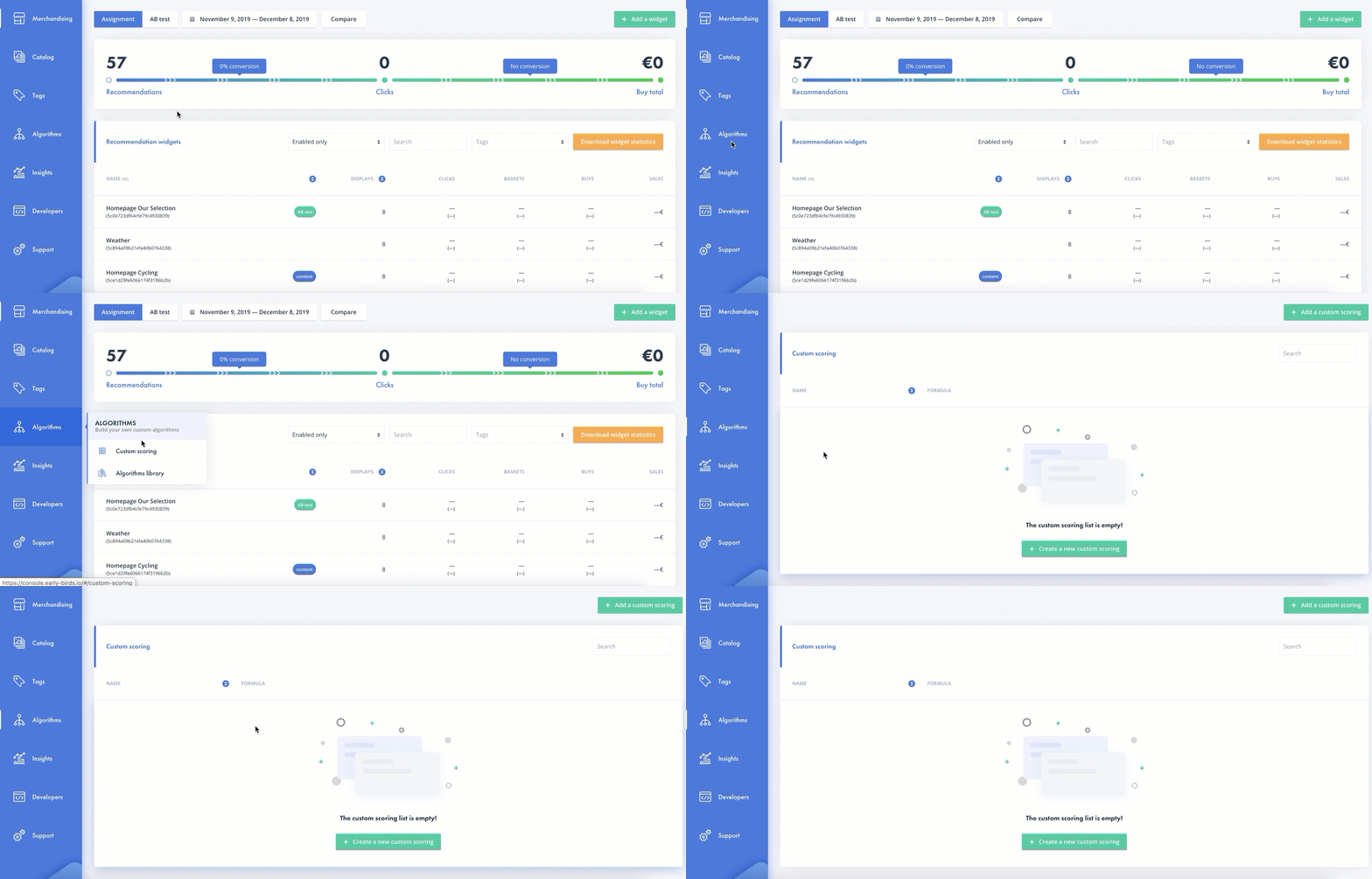
Step 2
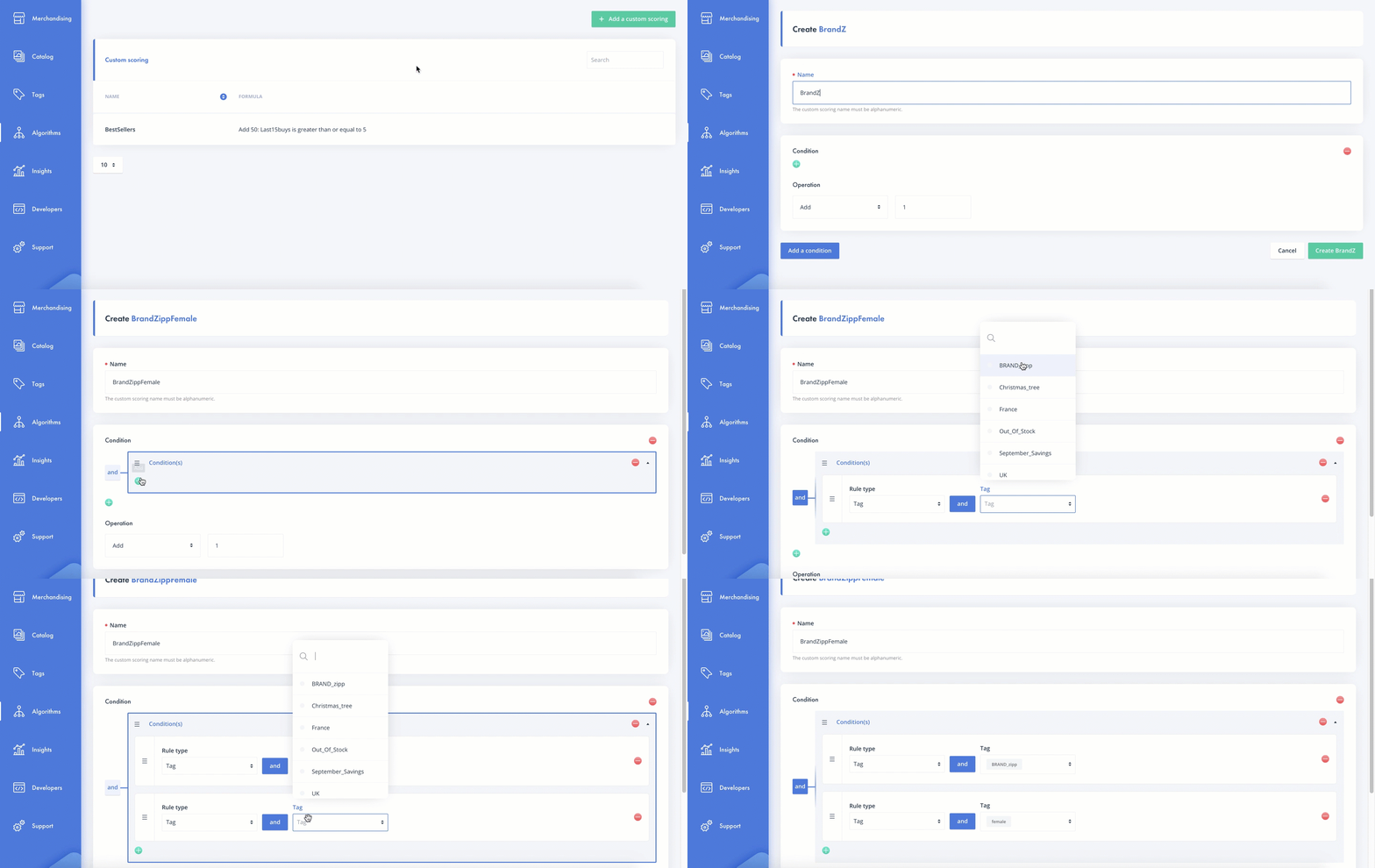
Click on 'Create a new custom scoring' to add one. Define a name and apply your triggers based on tags.
This is how do do it:
Here is another way to do it:
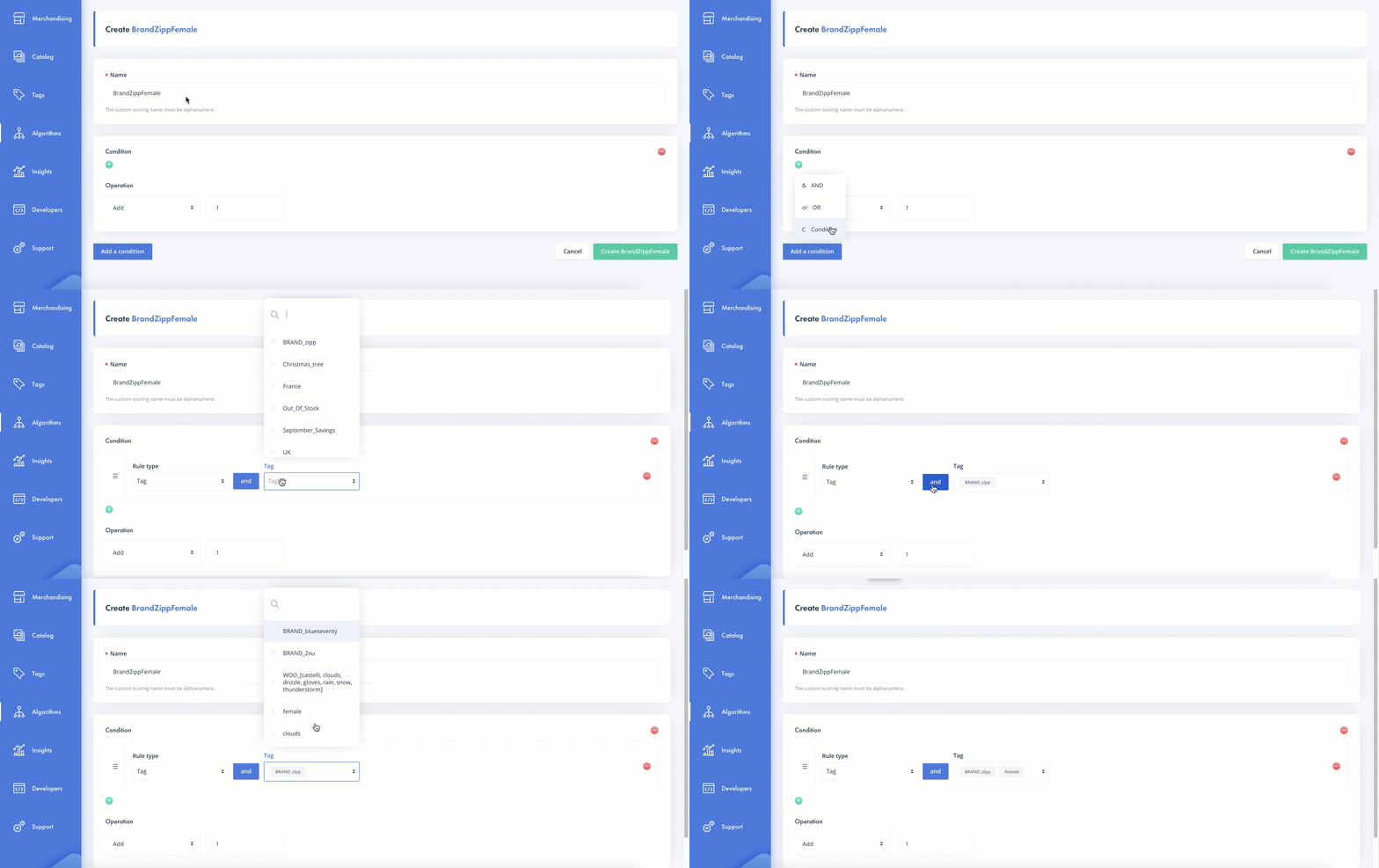
Warning : For every items which will be in the trigger, its score will be 1, not 5 (it's a trigger, not an operation).
Step 3
You've defined your trigger, now you can put the operation you want to make.
For this example, we'll make this kind of operation : "If my item is on the trigger, I want its score to be add by 50"
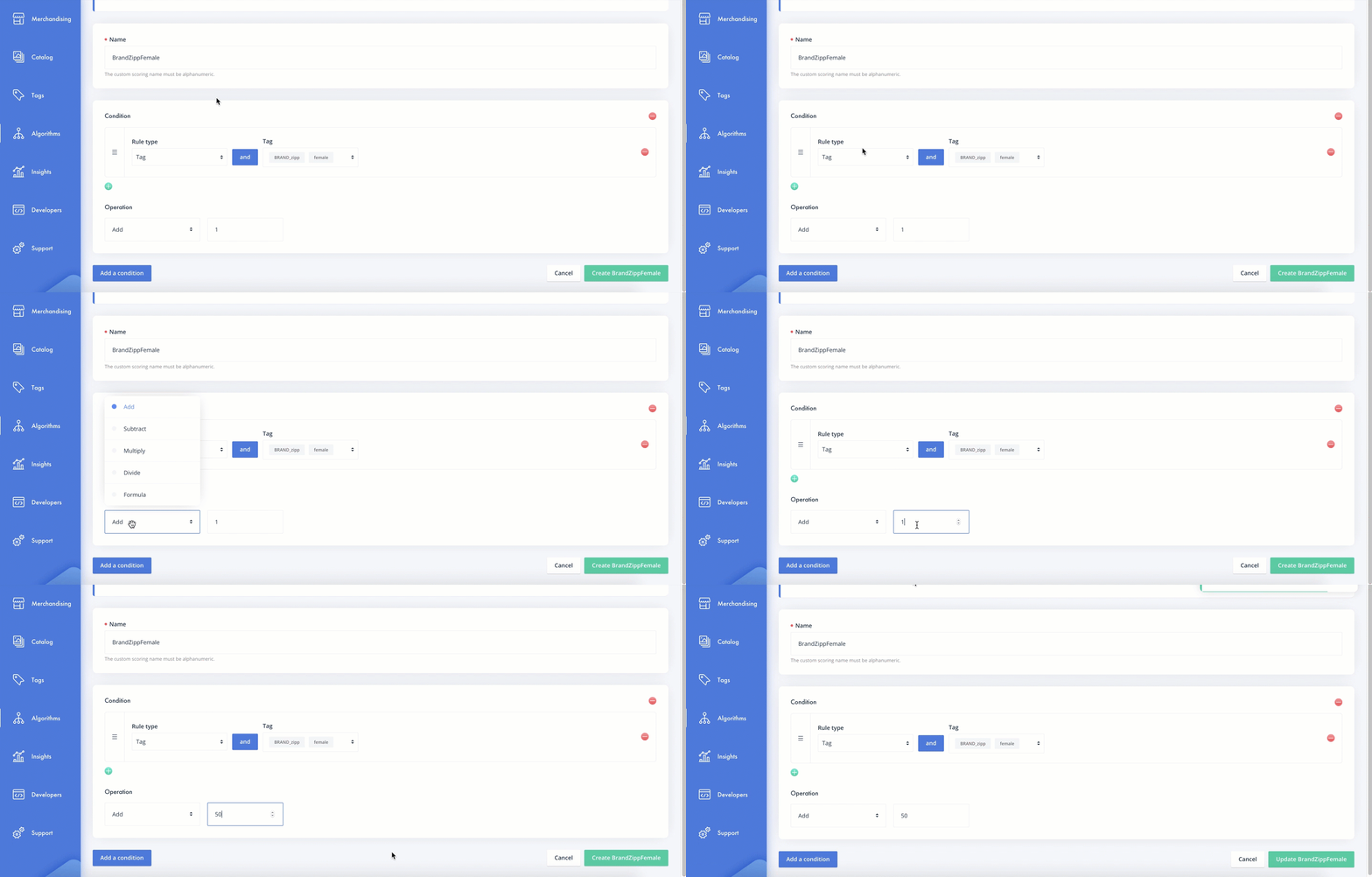
For the operation, you can put any score you want, it's all about your expertise and your product knowledge.
Step 4
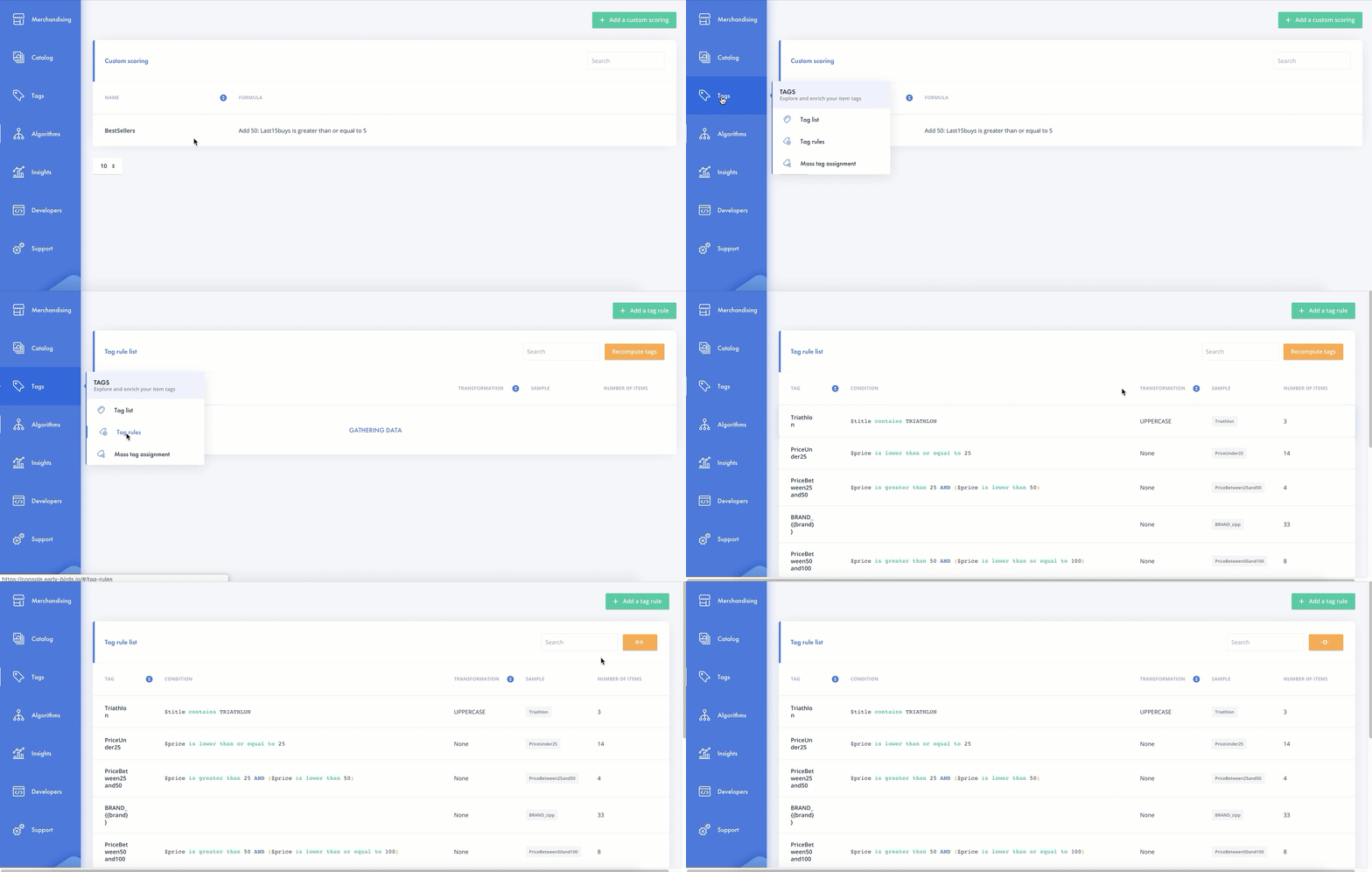
Launch a recompute tag:
Step 5
After a few minutes, go to the catalog to see if your custom scoring is well applied.
Scenario 2 - Create a custom scoring based on a dynamic attribute
My brand would like to push their best sellers, which are the purchases in the last 15 days.
For the purposes of this guide we will use an EB demo account.
The dynamic attribute has already been created with the following topic here.
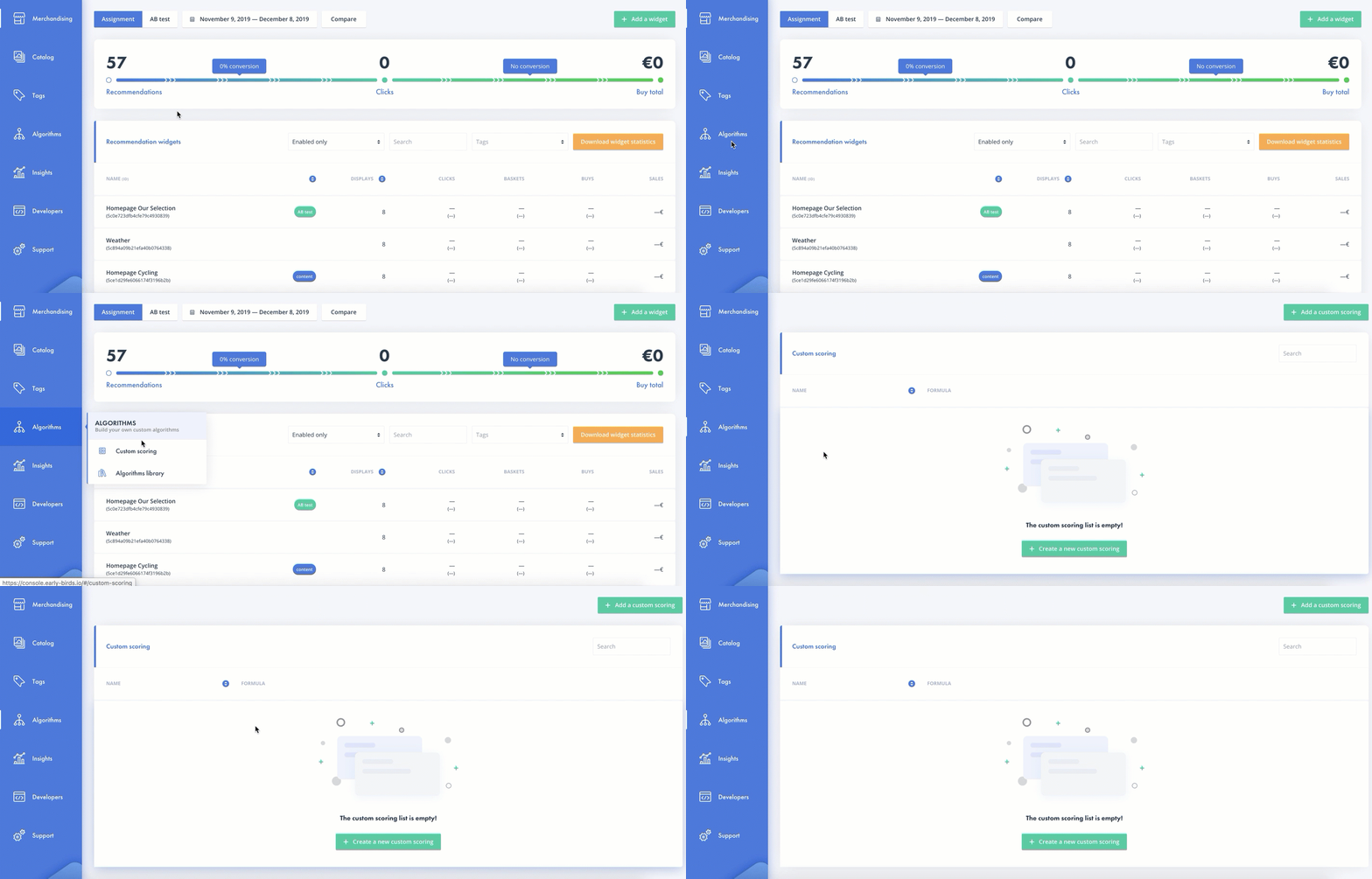
Step 1
Go to the 'Custom scoring' feature, accessible from the main navigation under 'Algorithms':
Step 2
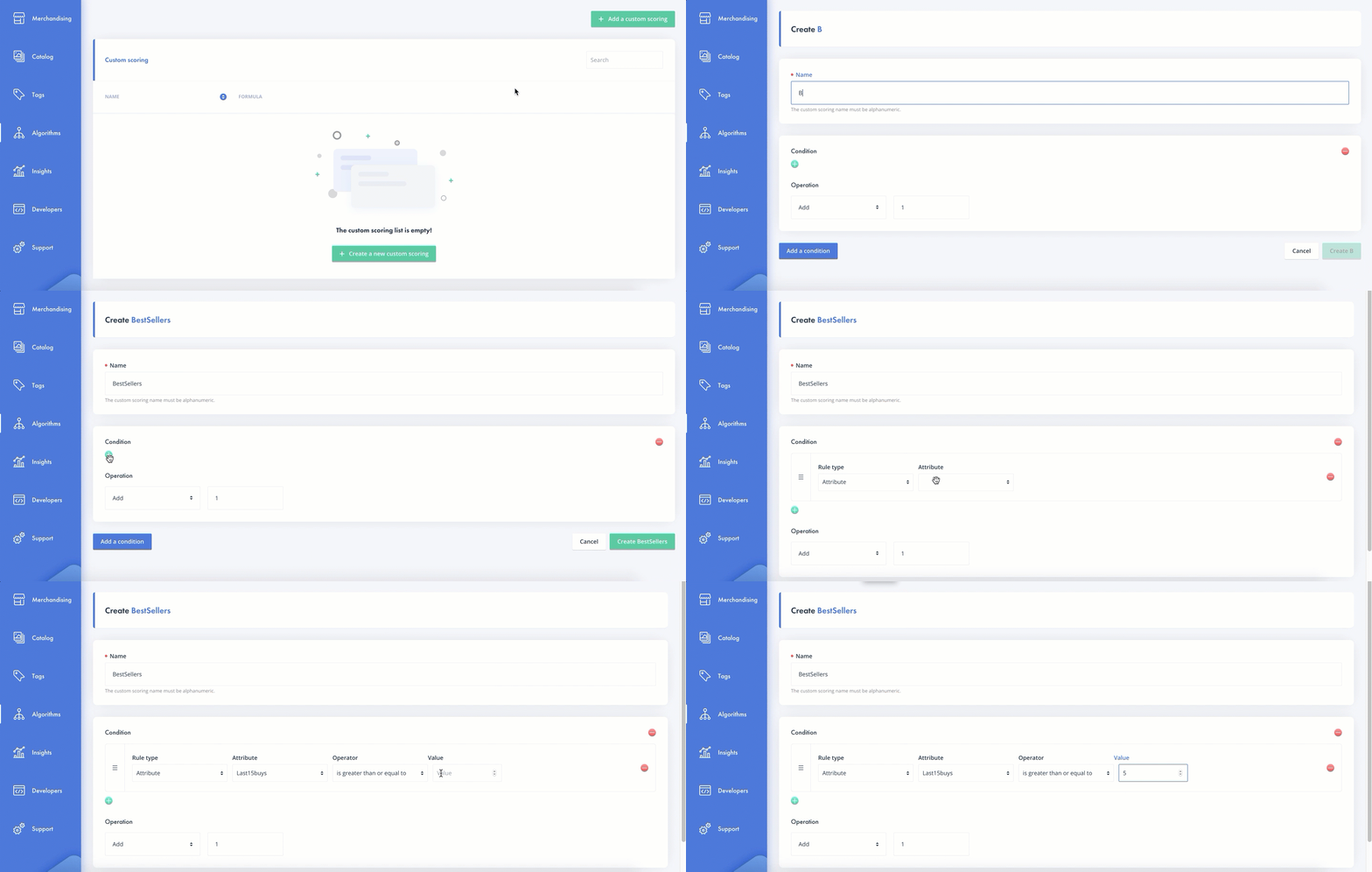
Define your triggering and the score you want to apply.
For this example, my trigger could be : "If my item has been purchased at least 5 times in the last 15 days, I want it to be scored".
The trigger will be configured like this:
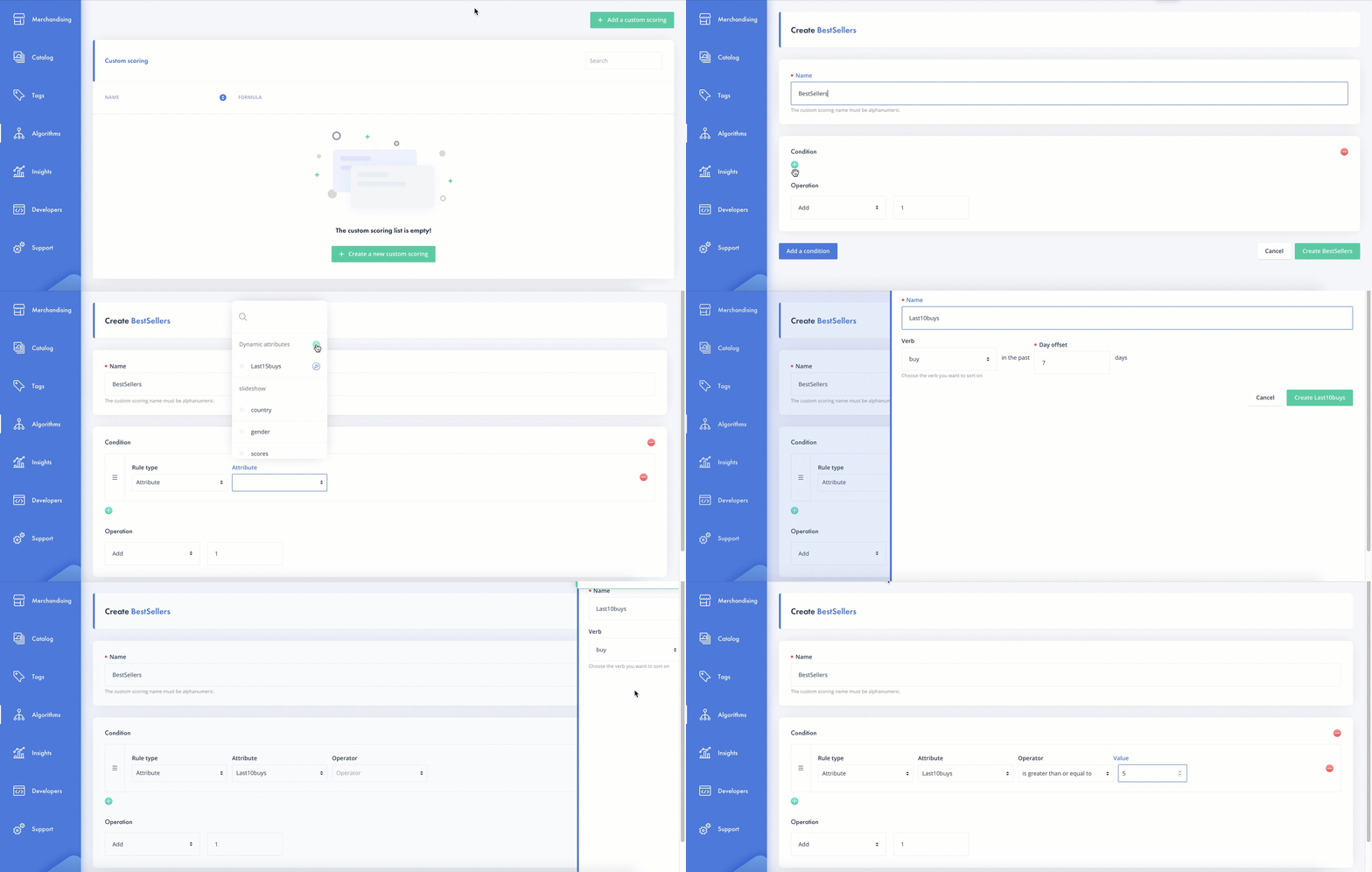
If your dynamic attribute doesn't exist, you can create it directly during your configuration:
Warning : For every items which will be in the trigger, its score will be 1, not 5 (it's a trigger, not an operation).
Step 3
You've defined your trigger, now you can put the operation you want to make.
For this example, we'll make this kind of operation : "If my item is on the trigger, I want its score to be add by 50"
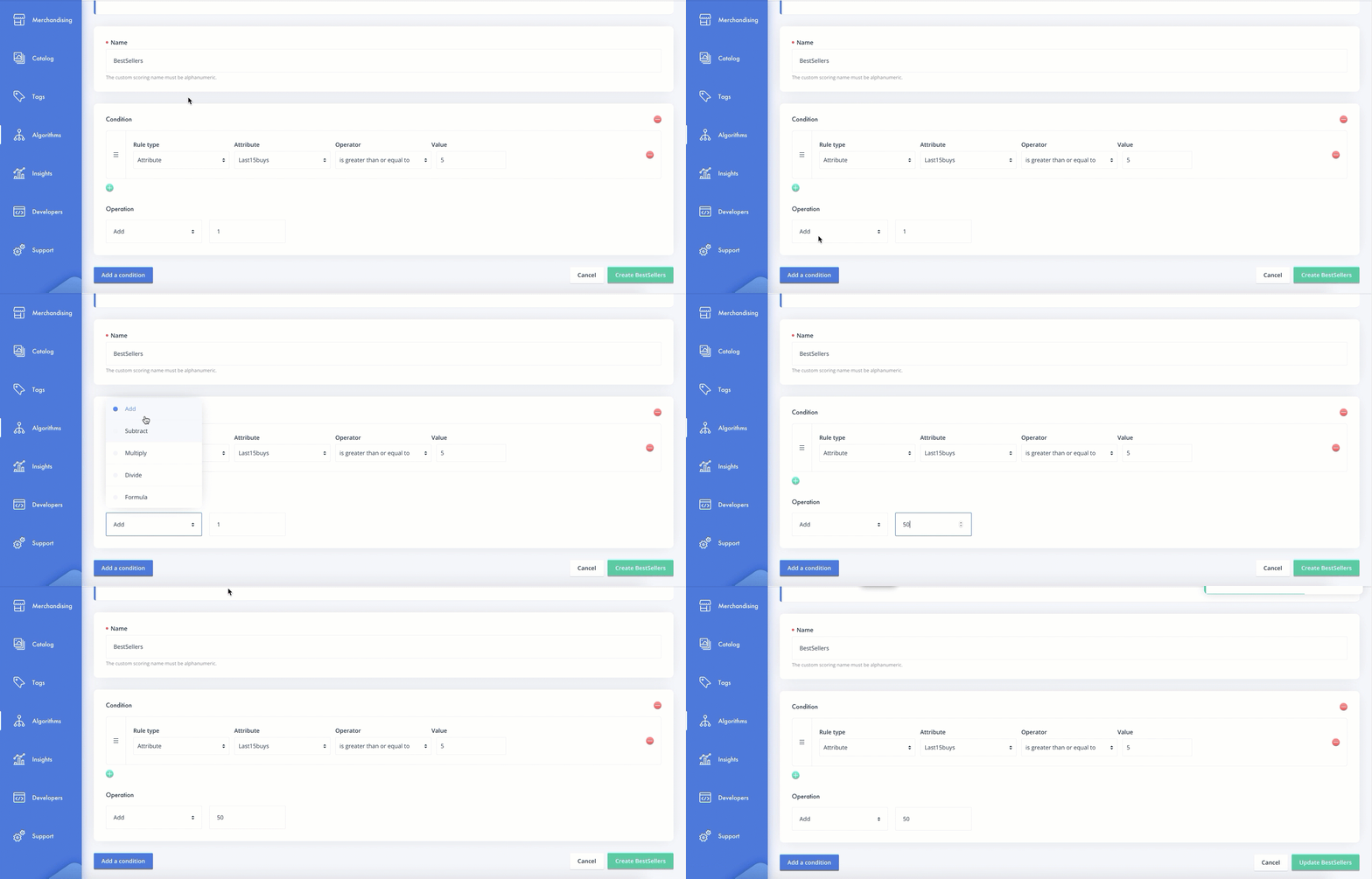
Step 4
Launch a recompute tag.
If your dynamic attribute has already been recomputed, your custom scoring will be available in a few hours.
If your dynamic attribute has just been created, you'll have to wait to the next morning to have to score of your activities (all score's activities are recomputed during the night).
Scenario 3 - Create a custom scoring based on a top brand
My brand would like to make his own scoring one specific brands which has been purchased in the last 15 days, but not with the same score.
If you want to apply to different score, you have to create others conditions.
Step 1
Go to the 'Custom scoring' feature, accessible from the main navigation under 'Algorithms':
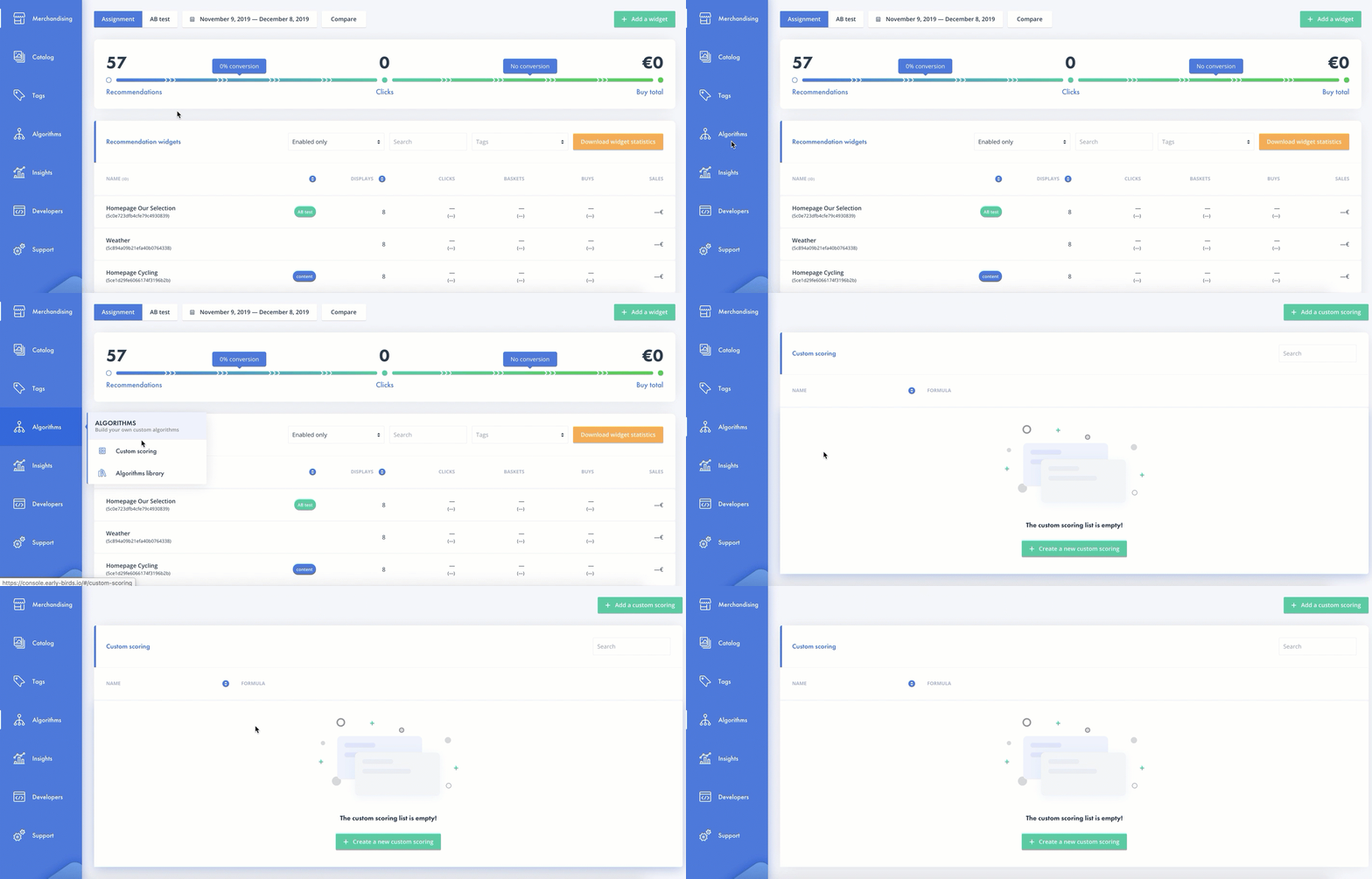
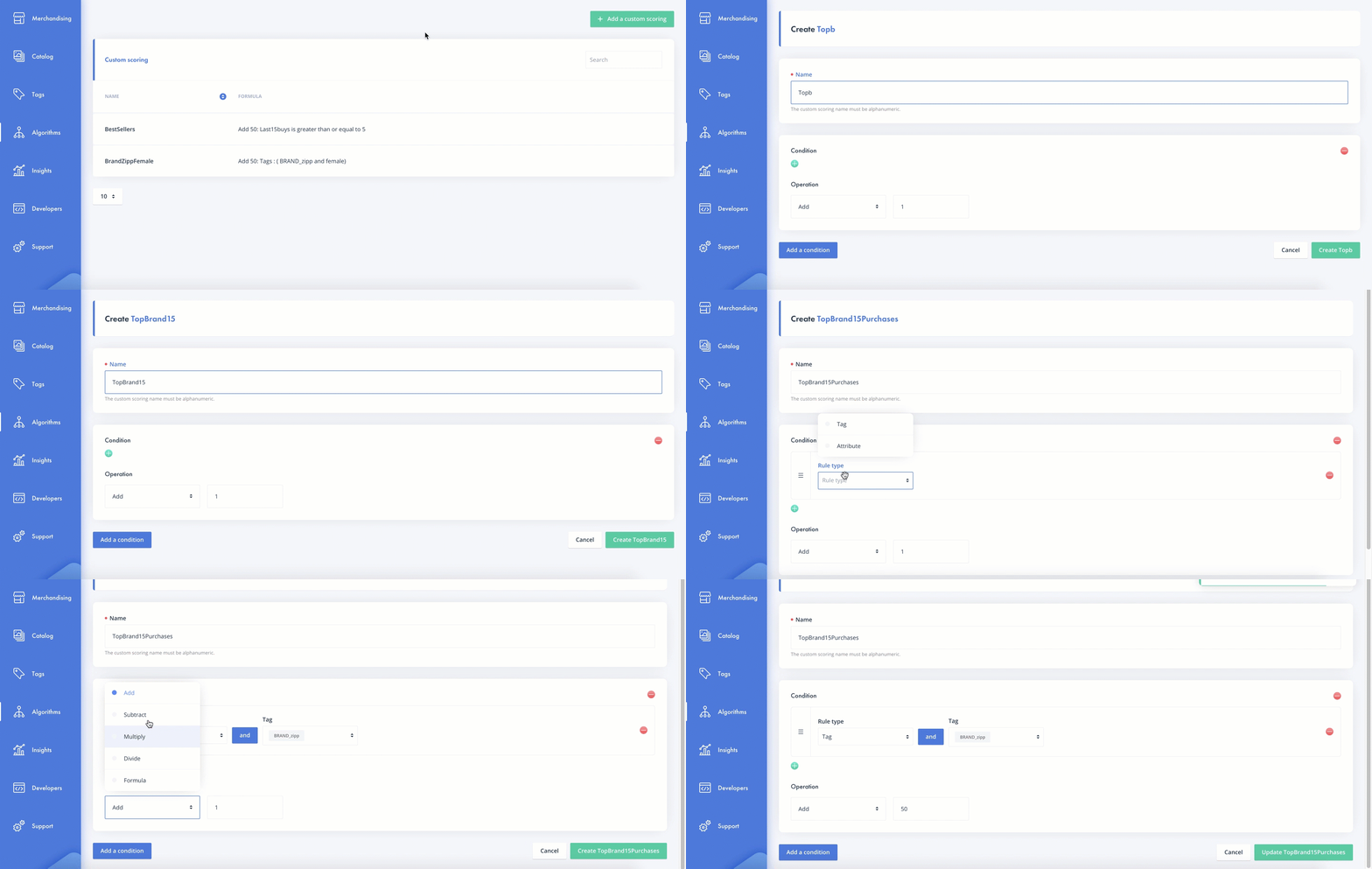
Step 2
Create your custom scoring, name it and apply your first conditions.
For example, the trigger would be "If my item has the brand tag, I want it to be scored" and the score would be "If my item is on the trigger, I want its score to be add by 50"
Then, you can create your other condition above :
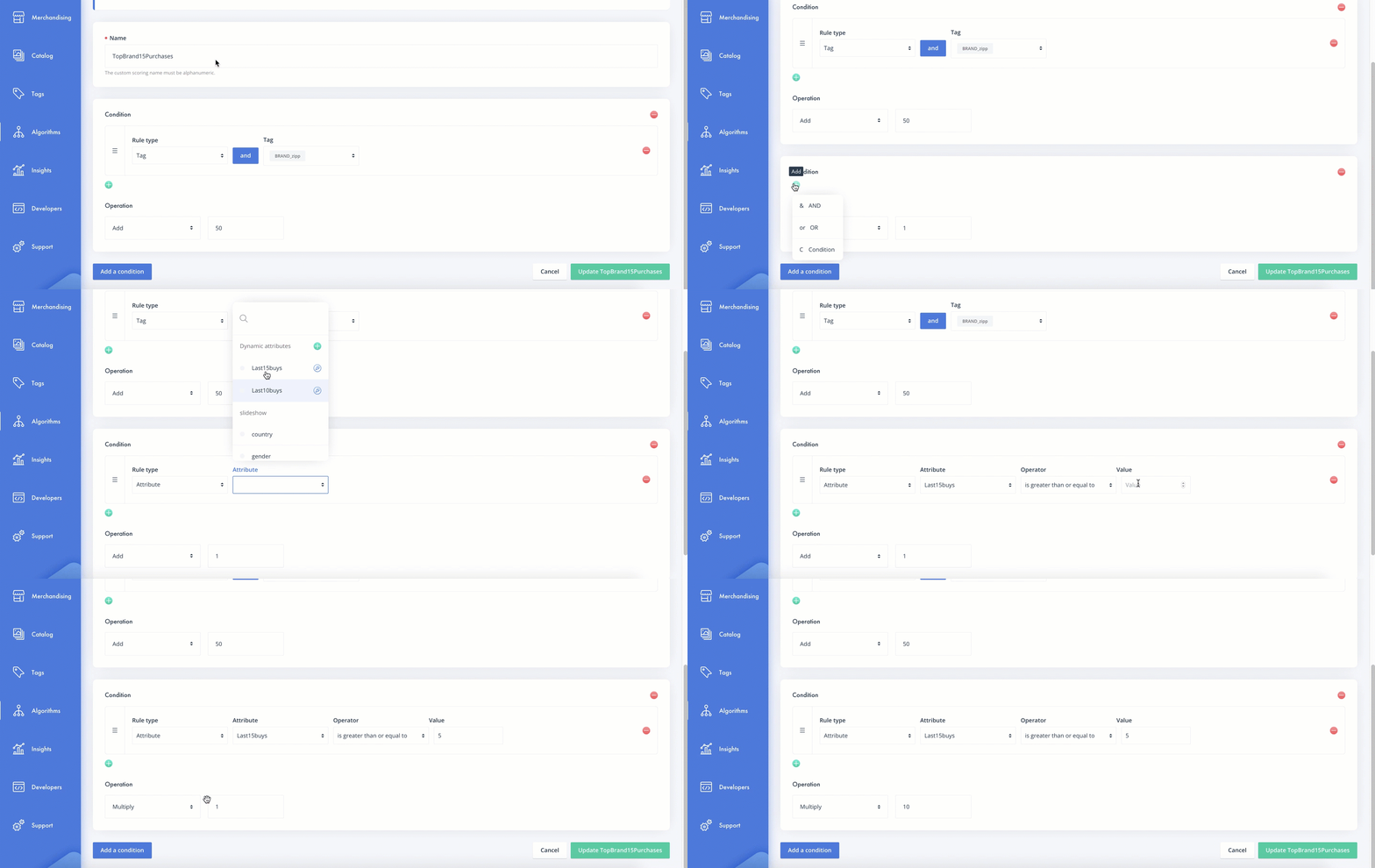
Step 3
Launch a recompute tag.
If your dynamic attribute has already been recomputed, your custom scoring will be available in a few hours.
If your dynamic attribute has just been created, you'll have to wait to the next morning to have to score of your activities (all score's activities are recomputed during the night).
With these 2 conditions and the reading process, we have 4 cases:
- If my item has the brand tag but has not been purchased 5 times in the last 15 days, its score will be 51 (1+50).
- If my item hasn't the brand tag but has not been purchased 5 times in the last 15 days, its score will be 0.
- If my item hasn't the brand tag but has well been purchased 5 times in the last 15 days, its score will be 10 (1x10).
- If my item has the brand tag but has well been purchased 5 times in the last 15 days, its score will be 510 (1+50 = 51 than x10 = 510)
Step 4
After a few minutes or the next morning, go to the catalog to see if your custom scoring is well applied.
Specific case: using a formula
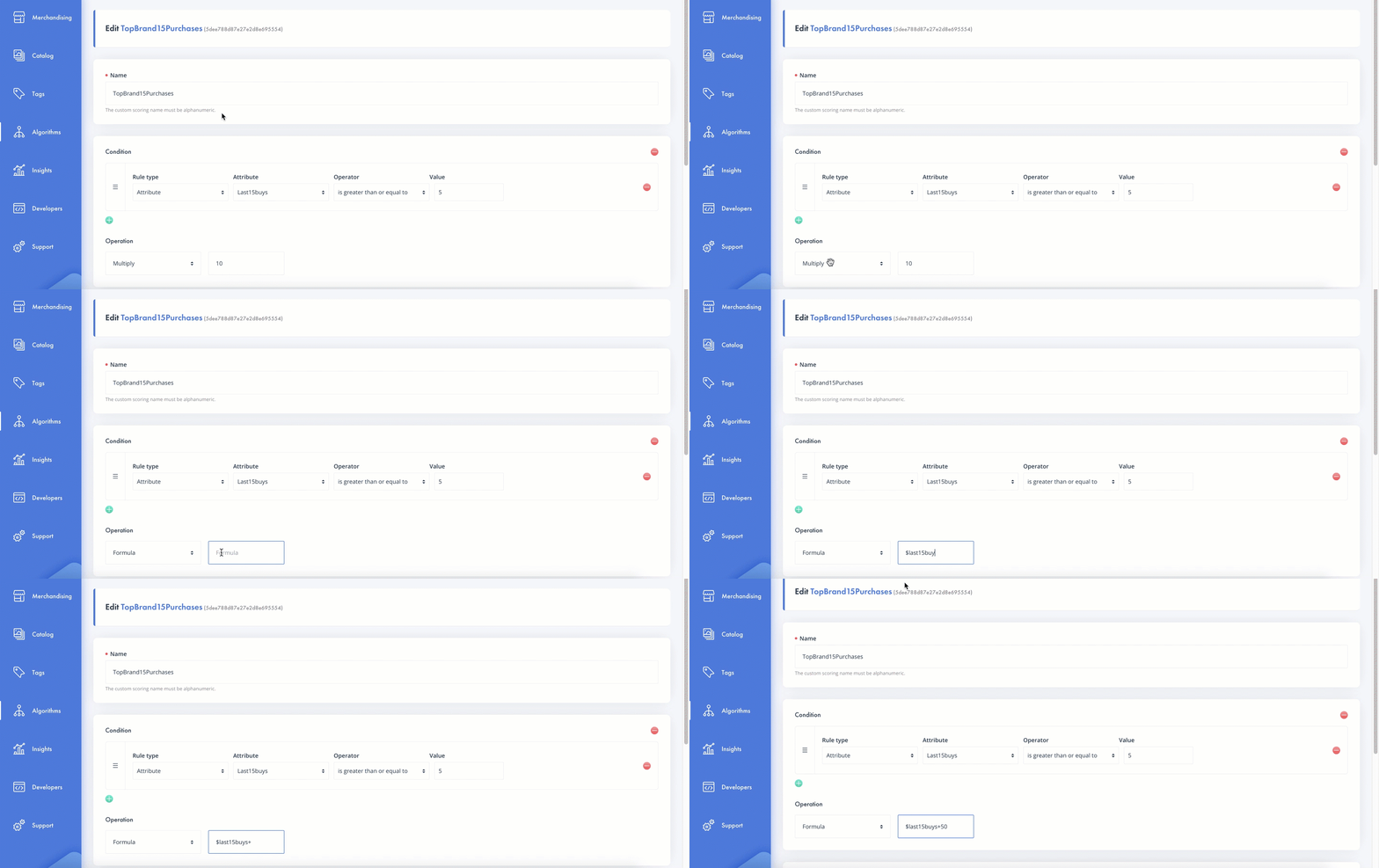
In your custom scoring, you can apply some operations but you can also use a formula with a variable.
We'll see an usecase by taking the example of the last15days purchase :
- If i'm using this attribute with a basic operation, the basic score of each items which is on the trigger will be 1. If I add 50, the final score will be 51 (50+1).
- If i'm using this attribute with a formula, I can use the number of purchases with a variable and use it in the operation. If the item is on the trigger and has been purchased 10 times in the last 15 days, its score will be 60 and not 51 (10+50)
To make an operation with a formula, you have to write the variable and put your operation:
Final step for all scenarios
After a few minutes (or the next morning if you used some dynamic attributes), go to the catalog to see if your custom scoring is well applied.
You'll see one or two new attributes:
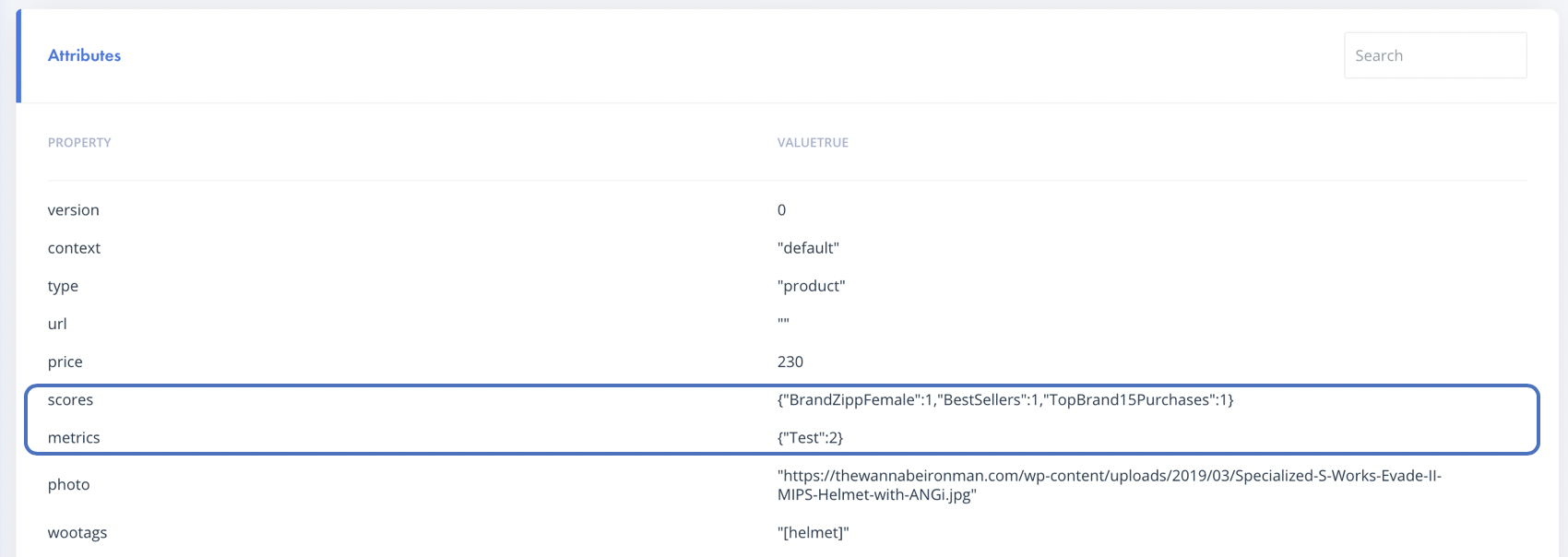
Scores : This attribute came from all the custom scoring we've made. In this example, the score is 1 for all because the concerned item is not on the triggers we've configurated earlier.
Metrics : This attribute cam from the dynamic attribute we've put. In this example, is the dynamic attribute was "the last buys in the 15 past days", this item has been purchase two times.
How do I use my custom scoring ?
Now that your custom scoring is ready, we can apply it on an algorithm configuration.
You have two ways to apply your custom scoring :
- By using it as an algorithm
- By using it as a weighting in another basic algorithm
Using it as an algorithm:
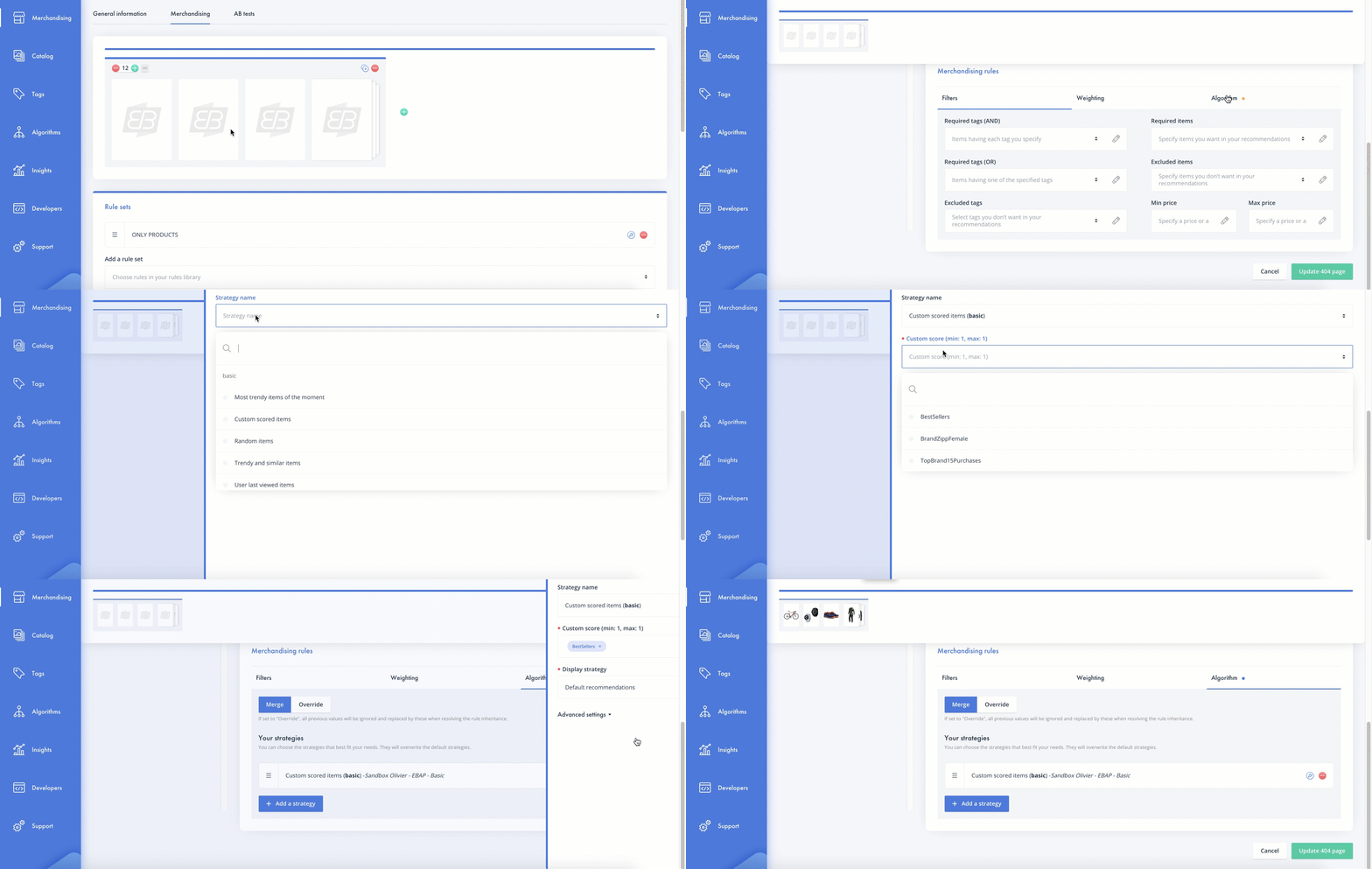
You can go in your widget configuration, in the algorithm part.
Here, you just have to put the strategy named "Custom scored items" (part of the Basics Algorithm) and choose the custom scoring you want to apply.
For example, I would like to use my Bestsellers custom scoring only:
Using it as a weighting in another basic algorithm :
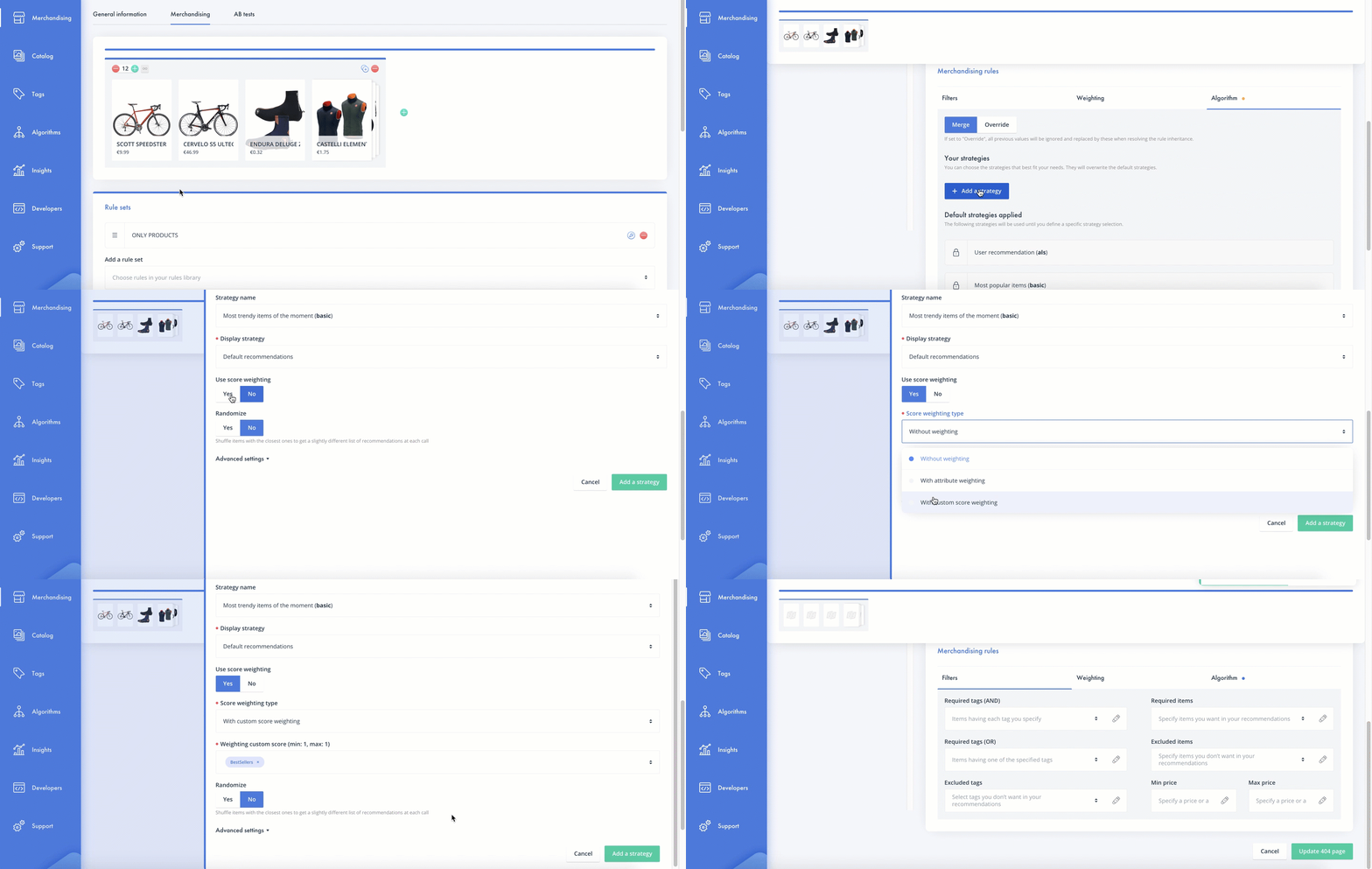
You can go in your widget configuration, in the algorithm part.
Here, you can choose any algorithm you want and put your custom scoring as a weighting.
For example, I would like to use the most popular algorithm with a boost on the best sellers:
Conclusion
Congratulations! You now know how to create a custom scoring in XO.
Let us know in the comment section if there are other test scenarios you would like us to create how-to guides for.
Enjoy your XO experience 😊
Should you encounter any difficulty setting up a custom scoring of your own please don’t hesitate to contact us by clicking here or clicking the submit a case link on the Support Centre and choosing “I have a question” from the list of use cases.
Kommentare
0 Kommentare
Bitte melden Sie sich an, um einen Kommentar zu hinterlassen.