
Weighting attributes to increase search relevance
This feature allows you more control over how your product catalogue is built. Assigning your attribute a higher rating will ensure it has a higher priority when matching with items.
How to do this is very simple:
- Navigate to Search - Configuration list.
- Click 'Searchable attributes' under the Configuration tab.
- Drag and drop the list of attributes to either boost or bury them in the search ranking.
Note: Moving the slider applies the changes automatically; there's no need to save.
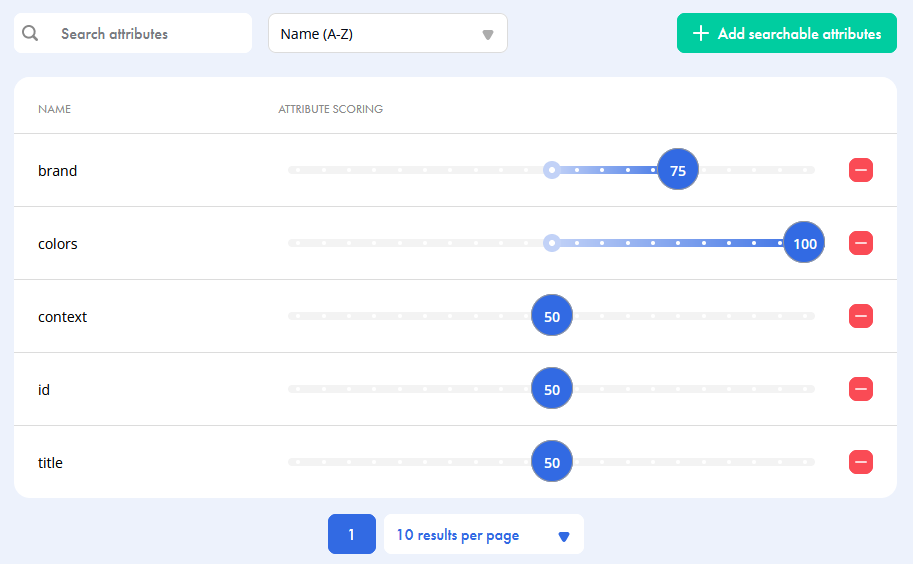
In this example, we have given colour the highest priority, so when searching for 'blue Nike trainers', the search results will prioritise blue trainers over Nike trainers.
Search scores explained
We know it's important to understand the impact of your rules and how they are being used. We have added a way to see a breakdown of how items are ranked to show this.
The higher an item score, the higher it will appear in the search ranking.
To see how the score is calculated:
- Navigate to Search and click on the Browse tab.
- Click on the 'Advanced Settings' dropdown, and ensure that 'Score Breakdown' has been turned on.
- Search for an item in the search bar - in this example, we are searching for 'shirt'.
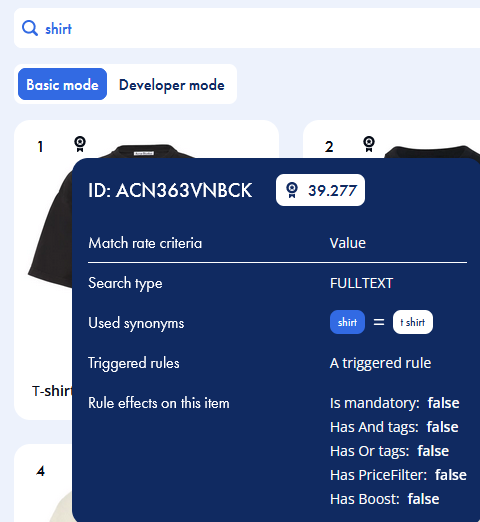
- In Grid View, hover over the award icon on an item, and you will see:
- The item score (for this item, it is 39.277).
- The synonyms used.
- The triggered rules that have.
- The triggered effect on the rule.
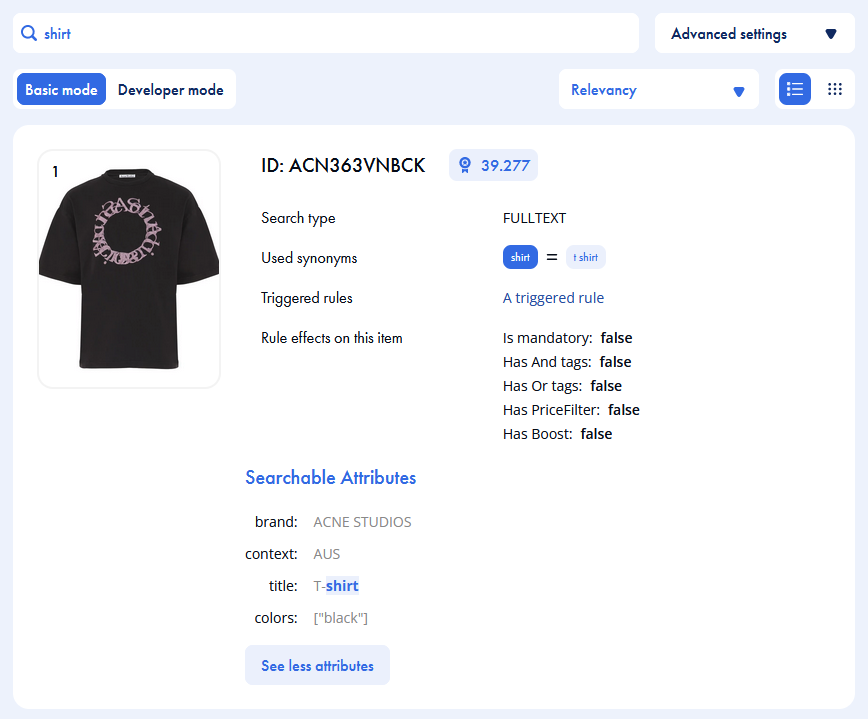
- In List View, you will see the same information and the list of searchable attributes to help you understand what in the search query matched with the item.
- Click 'See more attributes' to view the list.
- All the matched attributes are highlighted. Our search query matched with the title of the item, as shown below:
- In Grid View, hover over the award icon on an item, and you will see:
Kommentare
0 Kommentare
Bitte melden Sie sich an, um einen Kommentar zu hinterlassen.