
Once recommendation widgets are enabled, you can add XO widgets to your store using Page Builder.
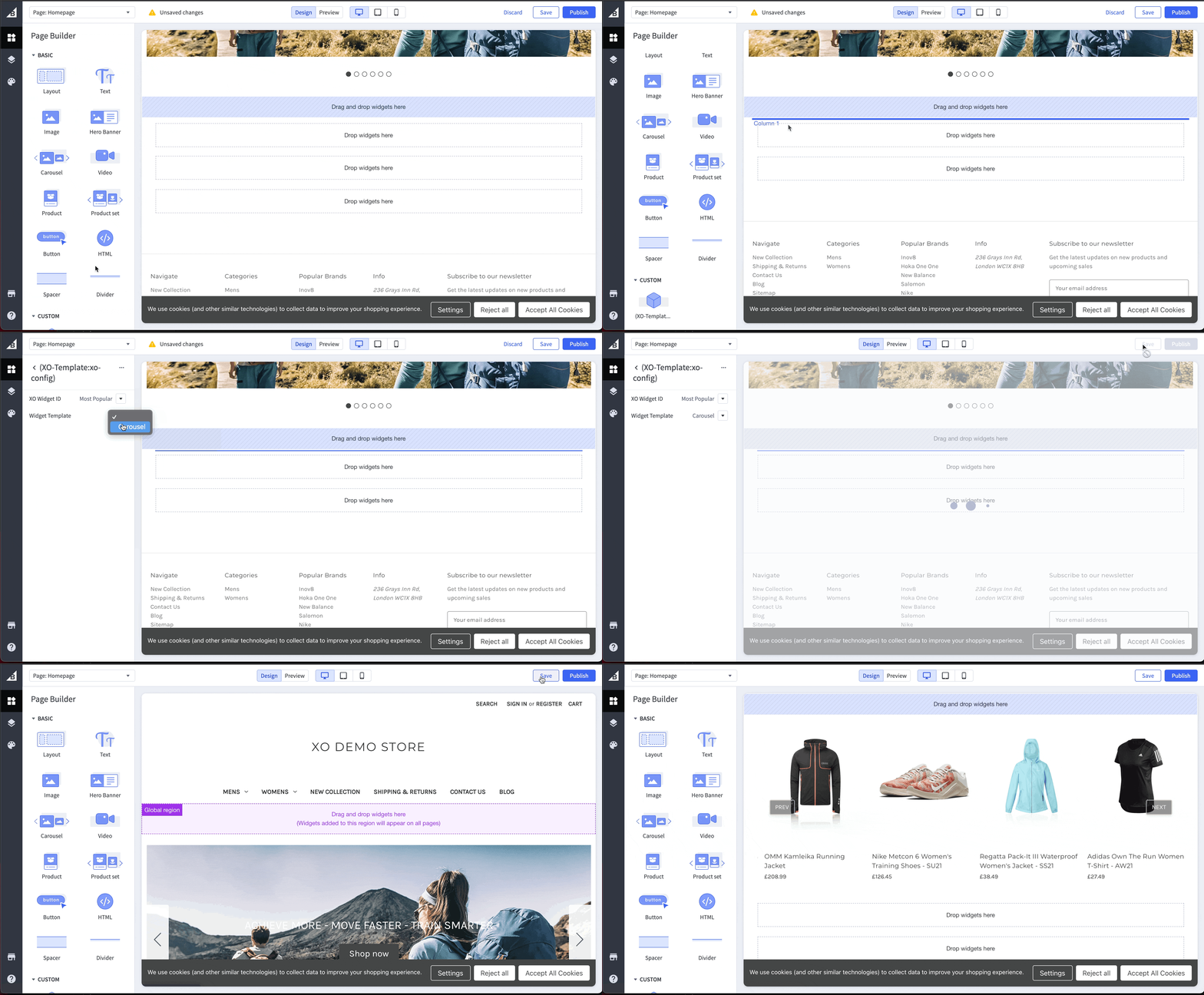
- Navigate to Page Builder by selecting 'Storefront' on the BigCommerce console and then selecting to customise your given theme.
- Here you can view the XO custom widget in the left-hand panel.
- Customise your store by dropping XO widgets onto the page where you need them.
- Next, select the widget type, e.g. 'Best seller', 'Similar items on PDP'.
- The different types of widgets can be found in a dropdown menu on the left-hand side.
- Once you've applied a widget and selected an ID, you can preview the products that will be recommended to the shopper.
- Please note there could be a slight delay in widgets appearing in the dropdown list and after they've been created in XO.
- Widgets will refresh periodically every minute. Please create a Support request if you're experiencing issues with widgets not appearing. View this article for more information on creating a Support request.
- Once you've configured your store with widgets and styled it appropriately, save your design or publish it. If you publish, your shoppers can begin interacting with your new store, immediately providing a personalised shopping experience!
Next step: Use Cases
Kommentare
0 Kommentare
Bitte melden Sie sich an, um einen Kommentar zu hinterlassen.